It isn’t easy for today’s users to navigate the multitude of apps and online services available for restoring old photos. Google search results suggest certain tools, ChatGPT recommends others. Then you go on social media and learn about completely different options.
On top of all that, new services for restoring old images appear regularly and, what complicates things even more, vary significantly in output quality, functionality, and cost.
Don’t worry, this guide won’t overwhelm you with an endless list of every existing option for old photo restoration. Instead, you’ll find an in-depth comparison of three apps to restore old photos that meet key selection criteria and deliver high-quality results.
What criteria did we use to select the old photo restoration apps?
For this guide, we determined several key criteria:
- Online operation. The app must work directly in the browser and not require installation of any software or plugins.
- Availability of a free version. It must be possible to test the tool and evaluate the output result for free.
- Restoration of photo quality. The app must enhance old photos and eliminate or reduce noticeable defects: grain, blur, scratches, creases, and damaged or torn edges.
- Colorization. In addition to restoration of black-and-white photos, it must also be possible to add color.
What do we consider to be a high-quality result?
We believe that the most important thing is naturalness. The restored photo must be as close as possible to the original, with the appearance of people accurately preserved.
Therefore, this guide doesn’t include any old photo restoration apps that “redraw” the original image too heavily: noticeably alter facial features, add new details, or create the characteristic look of an AI-generated image.
To make sure that the comparison is objective, we tested each app using the same set of images. This allowed us to see both their strengths and the differences in how they handle the same defects in the original images.
How will we evaluate each tool for restoring old photos?
We’ll start with the most important aspect – the output result. Then, we’ll evaluate usability, functionality, performance speed, the limitations of the free version, and the cost. At the end of each review, we will summarize the tool’s key pros and cons.
WowEnhance
Output Result
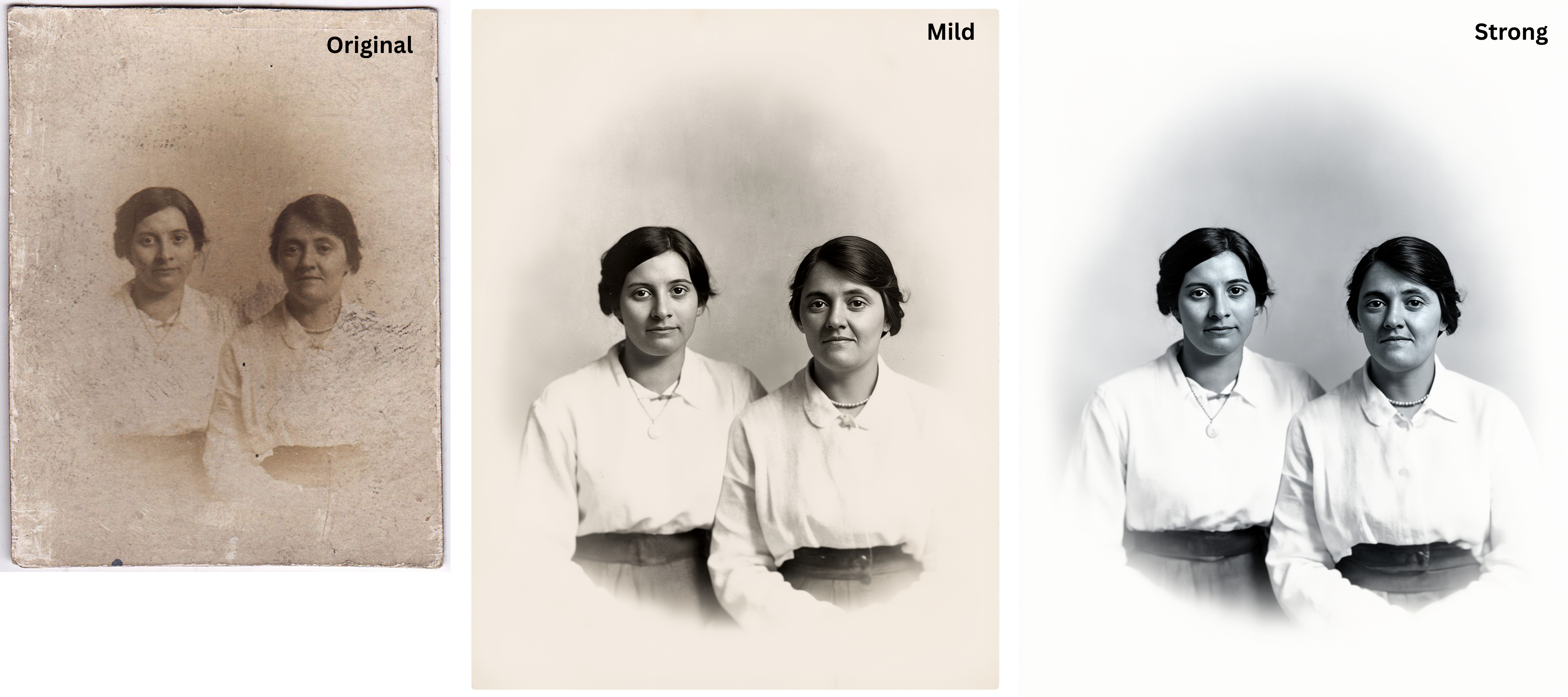
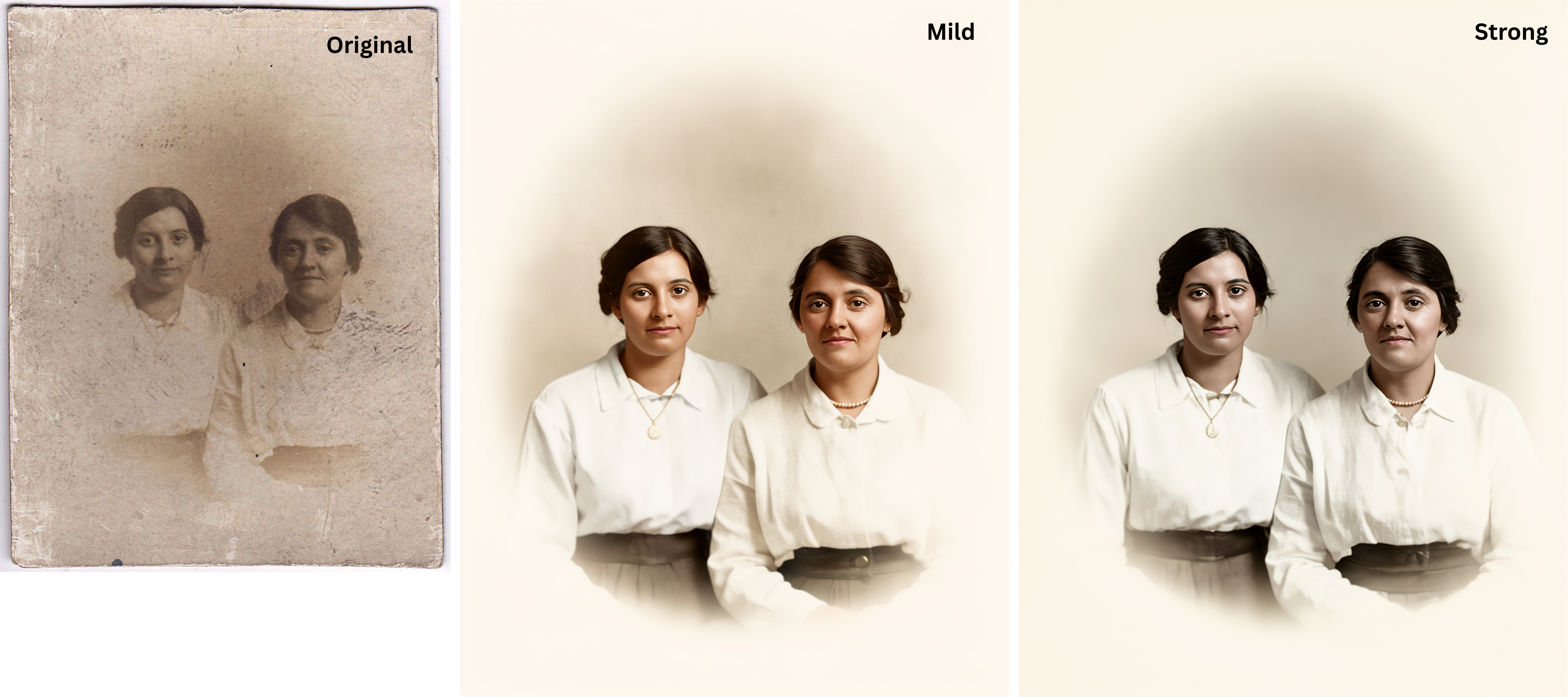
WowEnhance offers two main modes for restoring old photos – Mild and Strong. The main difference between them is the intensity of processing and the level of contrast. Additionally, the Colorize option can be enabled in either mode.
This means you can process the same photo in different ways, compare the output results, and choose the version that looks most natural and best meets your expectations.
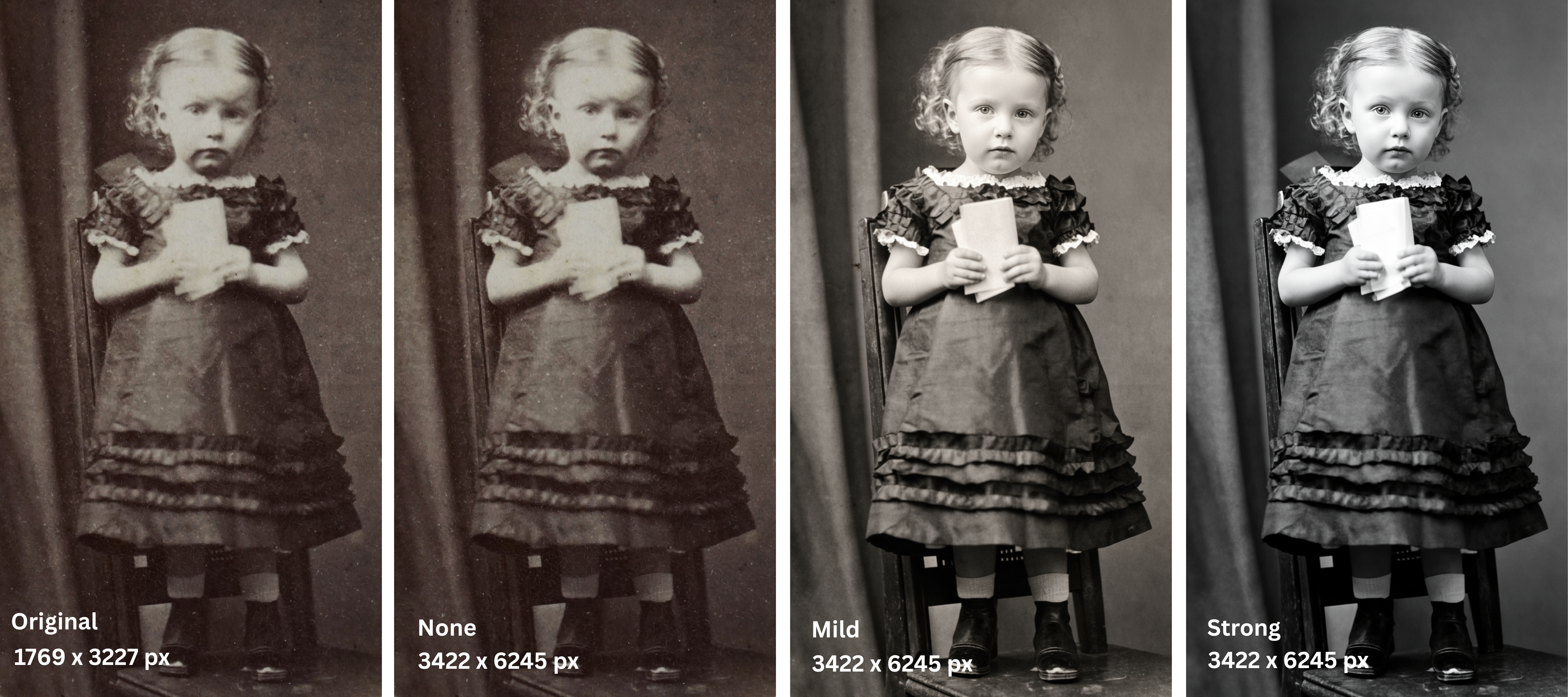
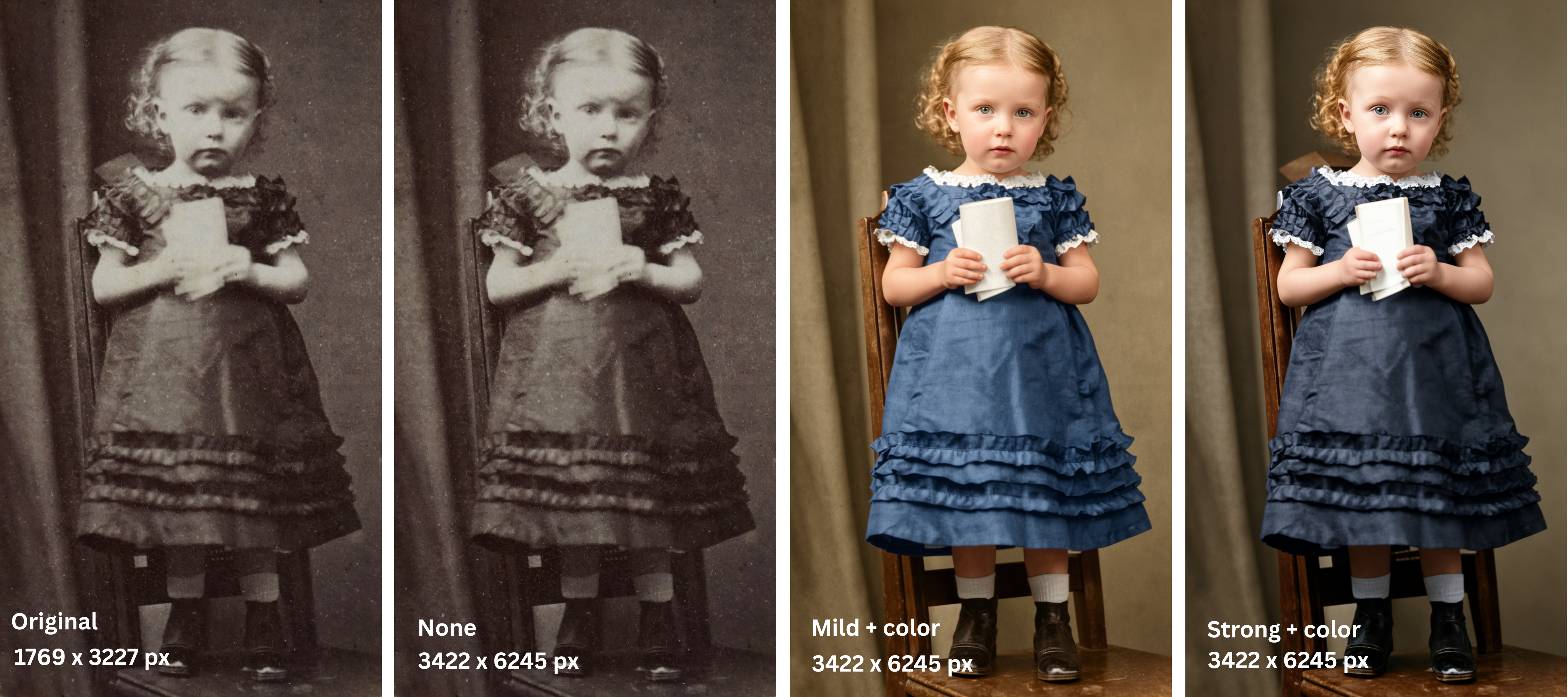
The None mode is also available. If you opt for it, the app will merely increase the resolution without restoring the photo.
When using the Restore tool, the resolution of the original image is either preserved – if it’s already high enough – or increased. This can be incredibly useful if you’re working with photos intended for printing or viewing on a large screen.
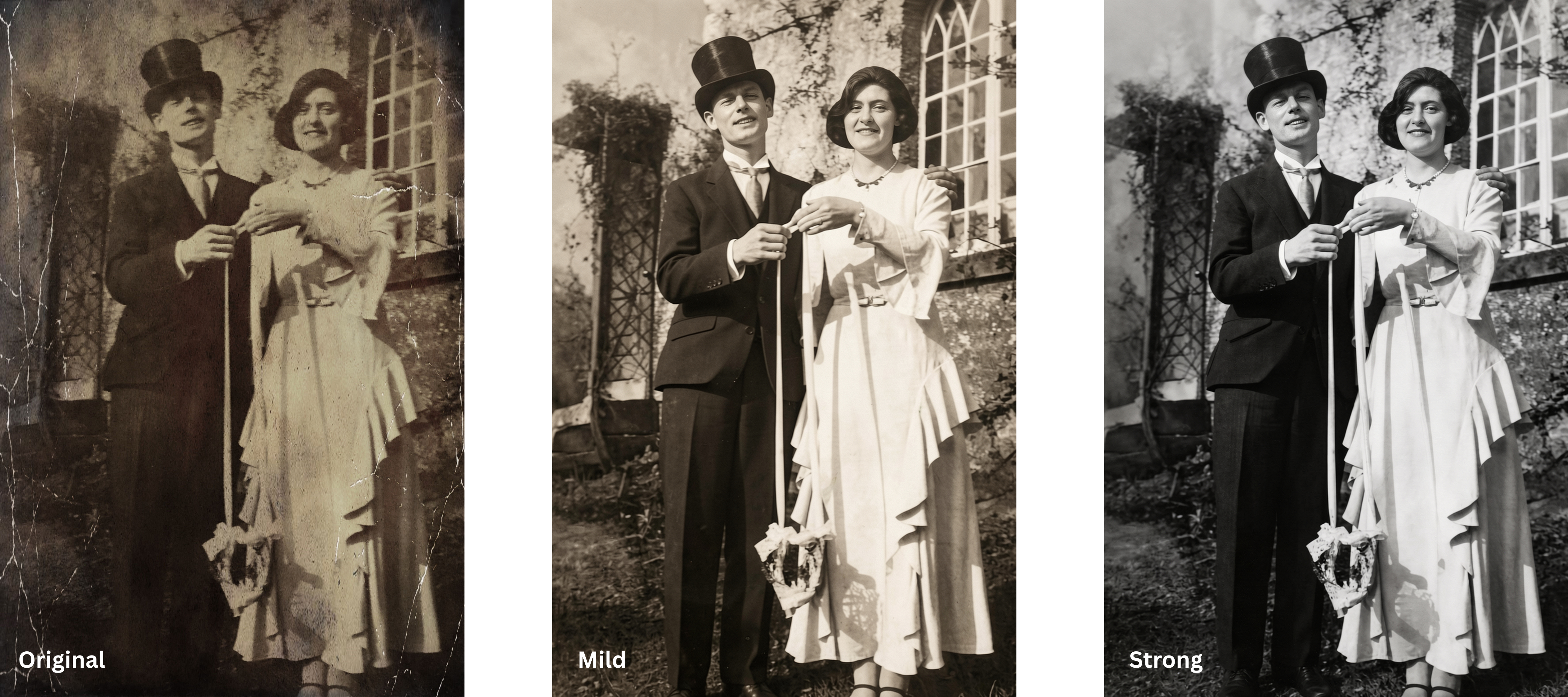
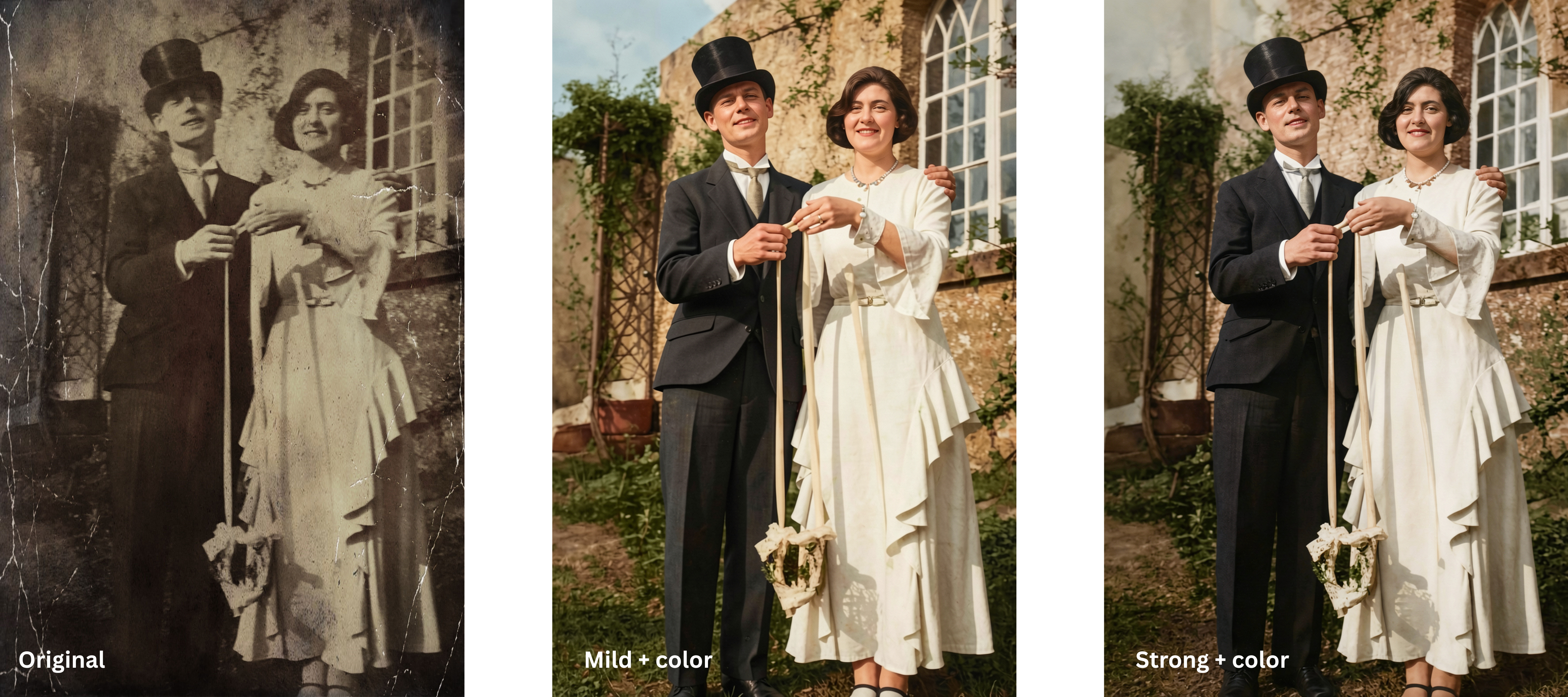
If the original image contains noticeable signs of damage, the app automatically attempts to repair them.
In our tests, faces, clothing details, and surrounding objects were restored with high precision. At the same time, WowEnhance treats the source image with care, avoiding the addition of noticeable details that aren’t present in the original photo.
Processing
Unlike most similar old photo restoration apps, WowEnhance doesn’t require registration to get started. The free version allows you to process up to 3 photos per day. But please note that you won’t be able to process all of them in one go – only one by one.
One of the app’s main advantages is the transparent credit usage system: one credit per image processed. Free credits are replenished the next day. Therefore, if you need to enhance a small number of photos for personal use, the free version may well be sufficient.
Batch processing becomes available after upgrading to the paid version, which allows you to upload up to 30 photos simultaneously and apply the same restoration settings to them.
WowEnhance offers several ways to upload original images. You can add a photo from your device, from cloud storage – Google Drive, Google Photos, or Dropbox – or directly from a website. A wide range of formats is supported, including JPG, JPEG, PNG, WebP, HEIC, BMP, AVIF, and RAW.
After uploading your file, you need to select Restore Old Photo, then choose the suitable restoration mode. In our testing, it took the app just a few seconds to process the image – which is significantly less time compared to the other two old photo restoration apps.
Before downloading, you can compare the original and restored version. Use the slider to switch between them and take a closer look at the changes in specific areas of the photo.
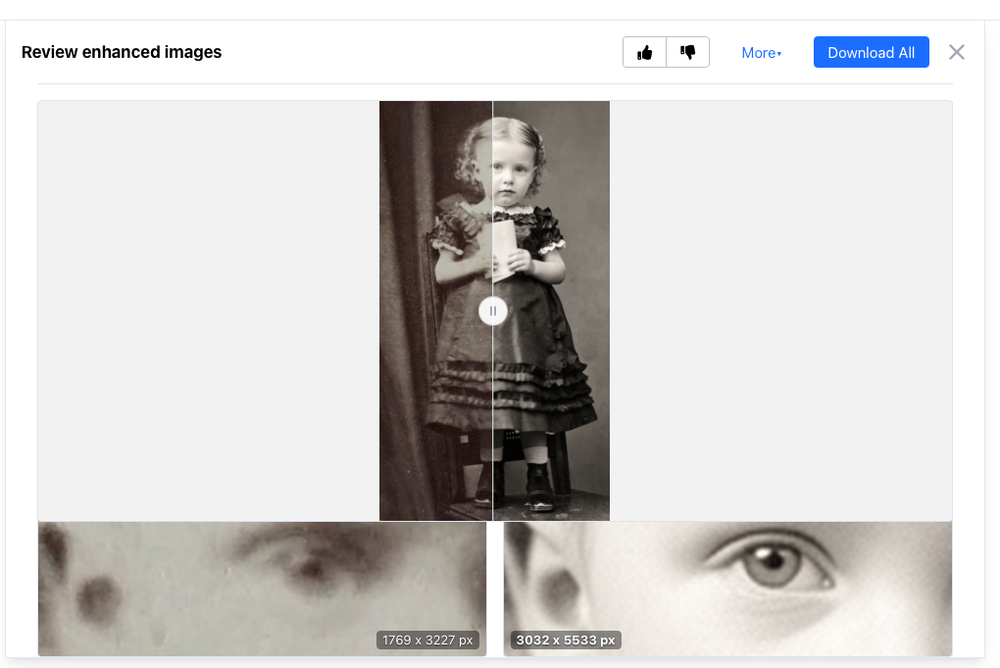
Before clicking Download All and saving the processed images to your device, it is worth checking the More section. There, you can find additional export options. For example, you can add a custom logo or watermark, as well as save the processed photos directly to cloud storage.
You’ll be happy to know that in the free version, the restored photos can be saved without any additional restrictions.
Cost
The paid version of WowEnhance operates on a credit-based system. Instead of a subscription, users can purchase the required number of processing operations based on the number of photos they plan to restore.
The starter pack costs $14.95 for 200 images. Users aren’t tied to a monthly subscription or a specific usage frequency; purchased credits remain valid for one year.
If you purchase a larger package, the cost of processing a single photo decreases. Depending on the chosen package, it can be less than half the cost of purchasing the minimum number of credits.
Pros
- Multiple modes for restoring old photos.
- The output result remains close to the original image, without the addition of new details.
- You don’t need to sign up to use the free version.
- Free credits are replenished daily.
- User-friendly interface and minimal steps to achieve the result.
- High processing speed – restoration of each photo takes just a few seconds.
- Convenient before-and-after comparison mode.
Cons
- Batch processing is available only in the paid version.
- In the free version, you can process only one photo at a time.
- Free use is limited to three photos per day.
PicWish
Output Result
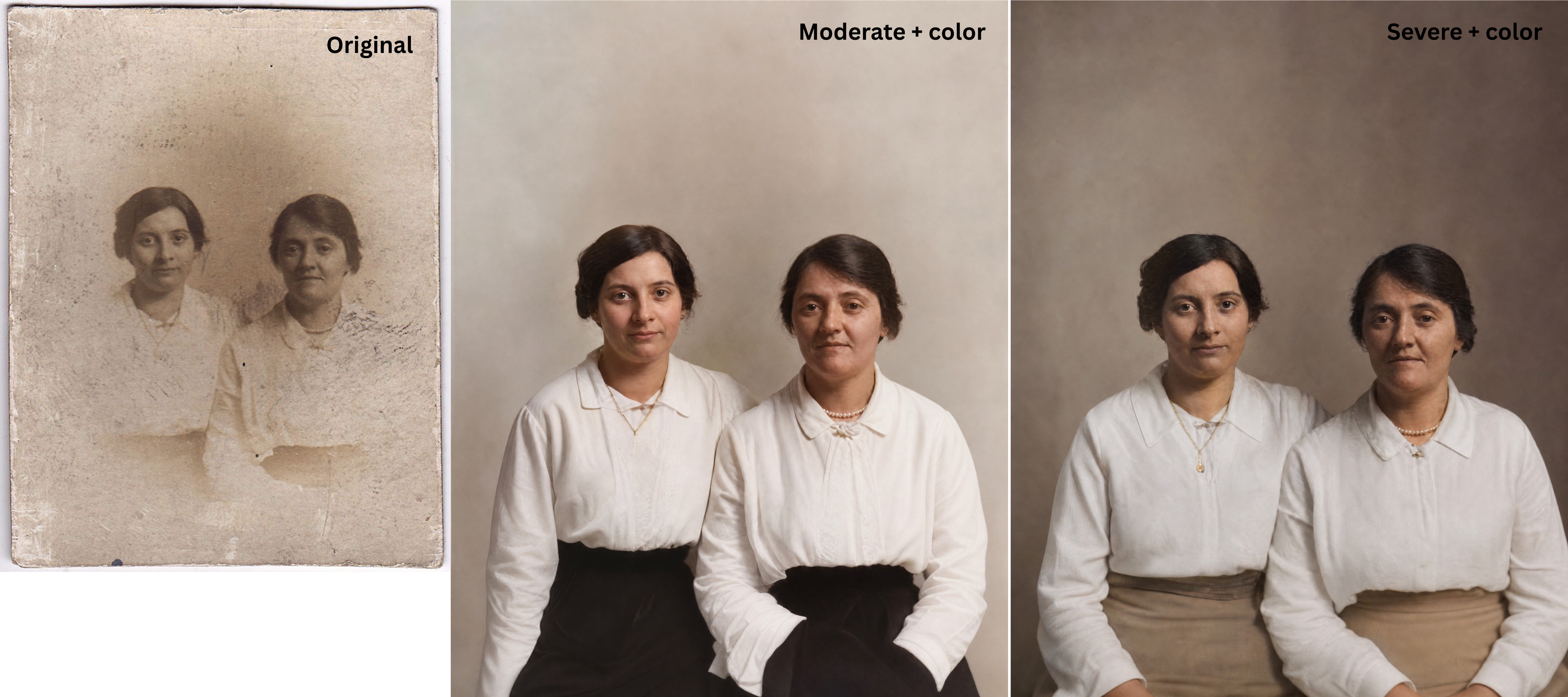
PicWish offers three photo restoration modes: Mild, Moderate, and Severe. For the latter two, you can also enable the colorization option. However, keep in mind that high-resolution original photos may be downscaled during processing.
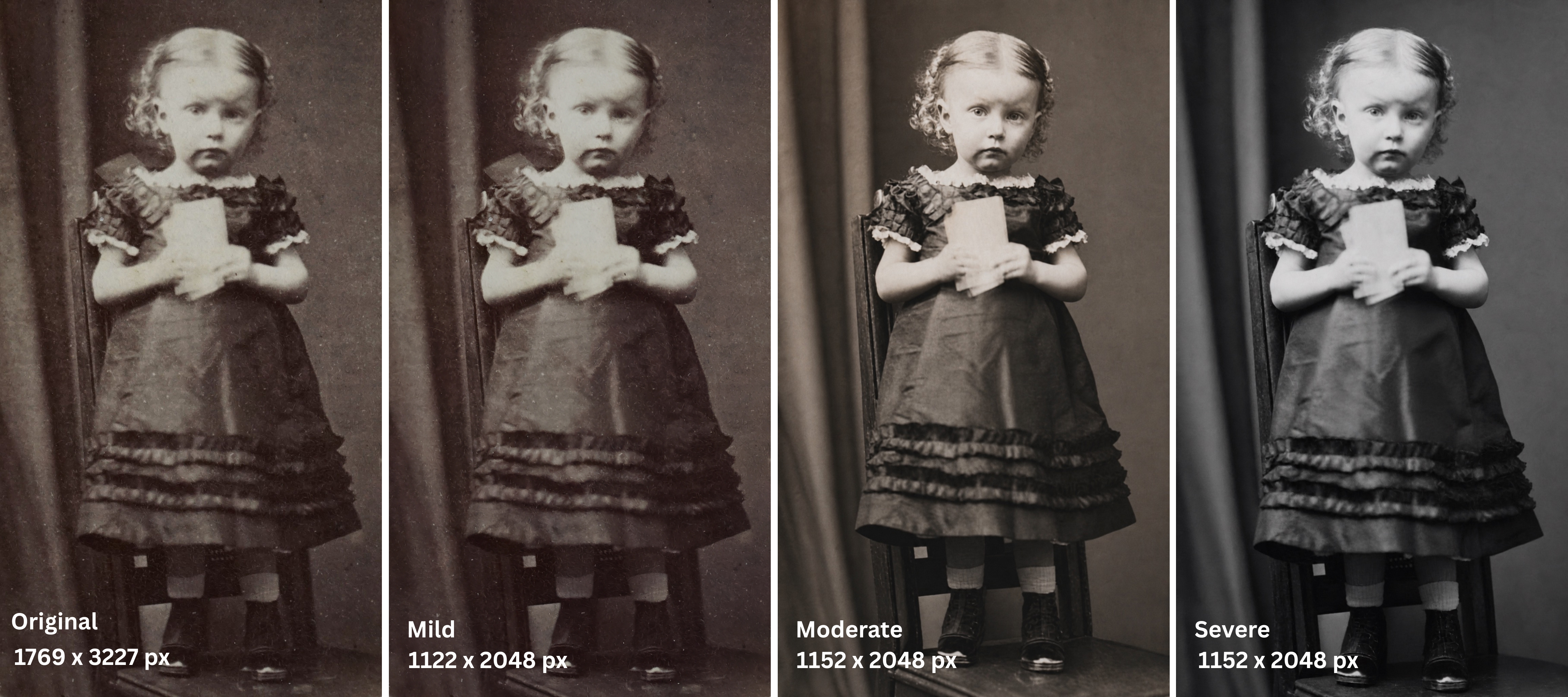
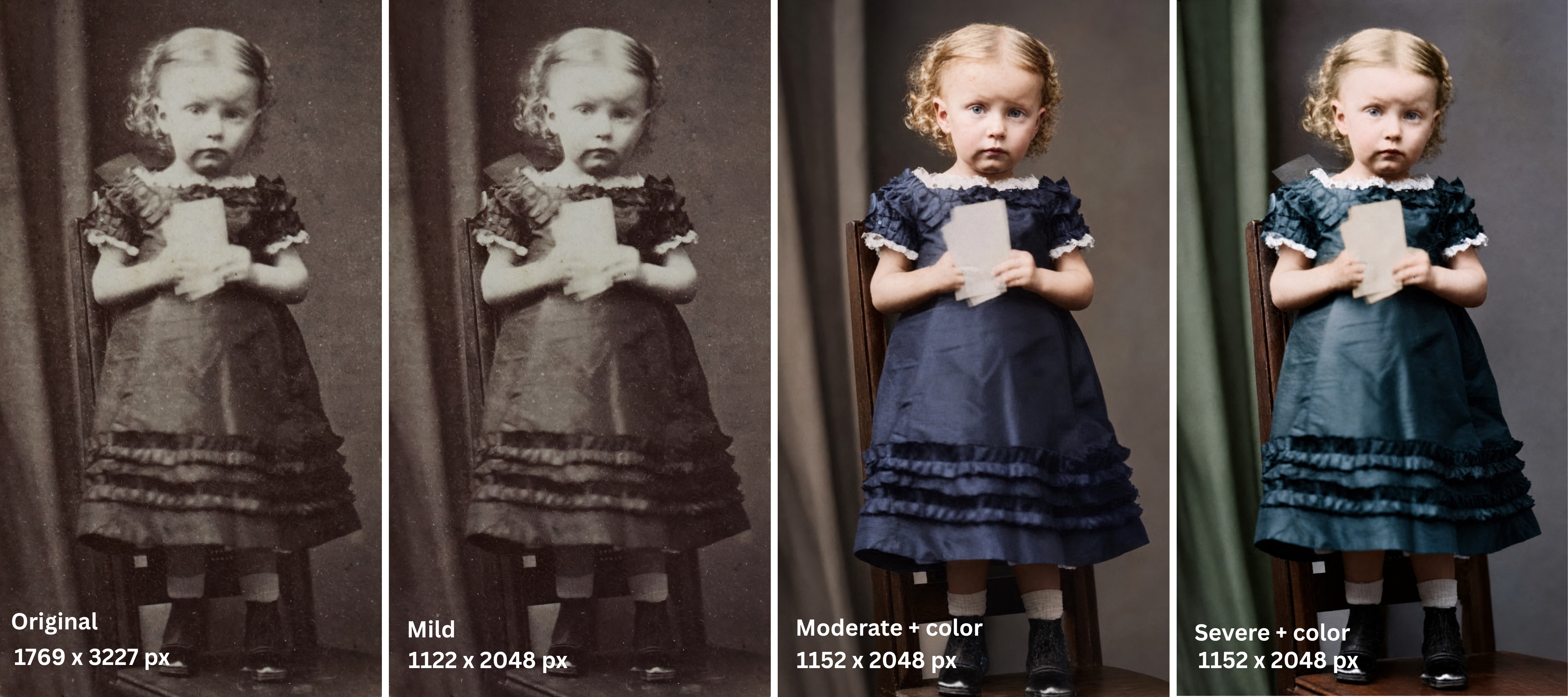
After restoration, the images become sharper and clearer, and most noticeable defects disappear. However, slight graininess and minor blurring may remain.
PicWish restores faces quite carefully: in most cases, they remain close to the original, without any noticeable alteration of features.
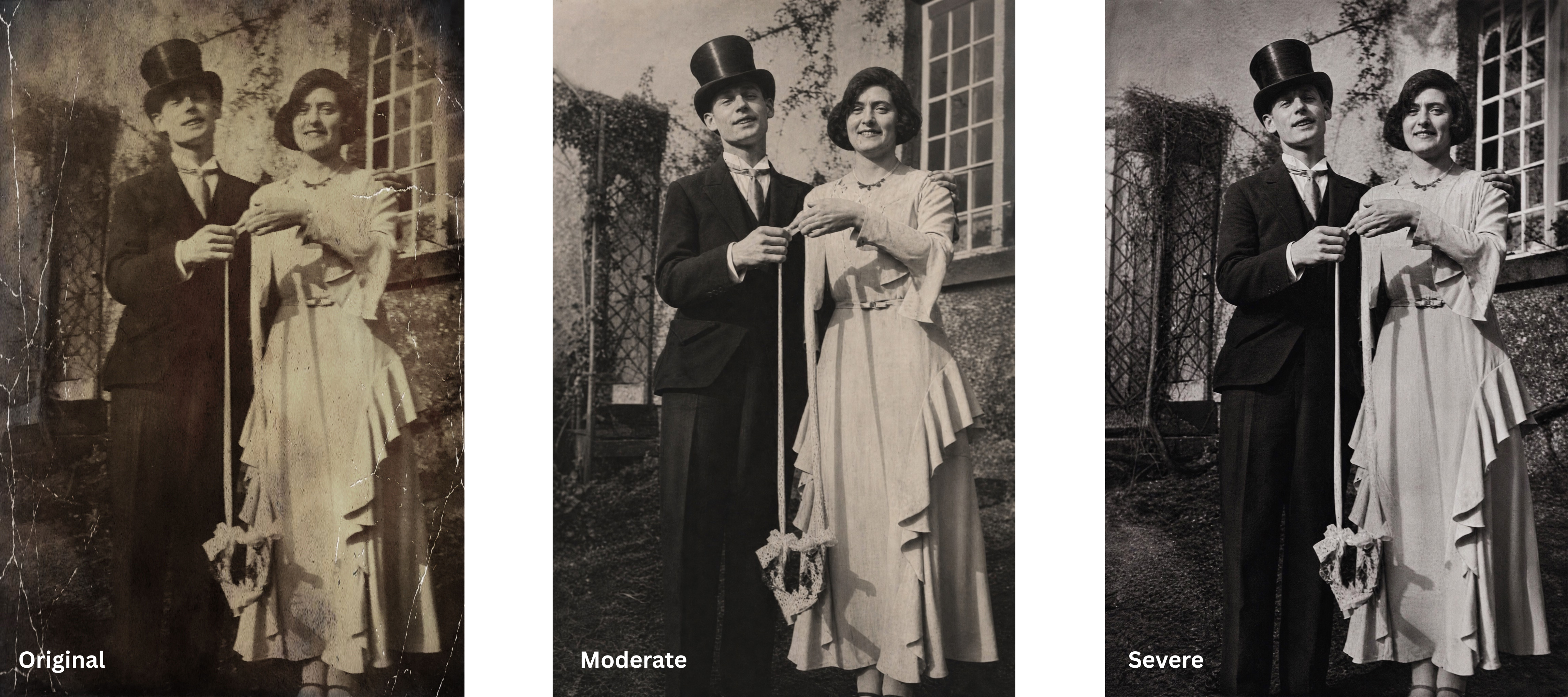
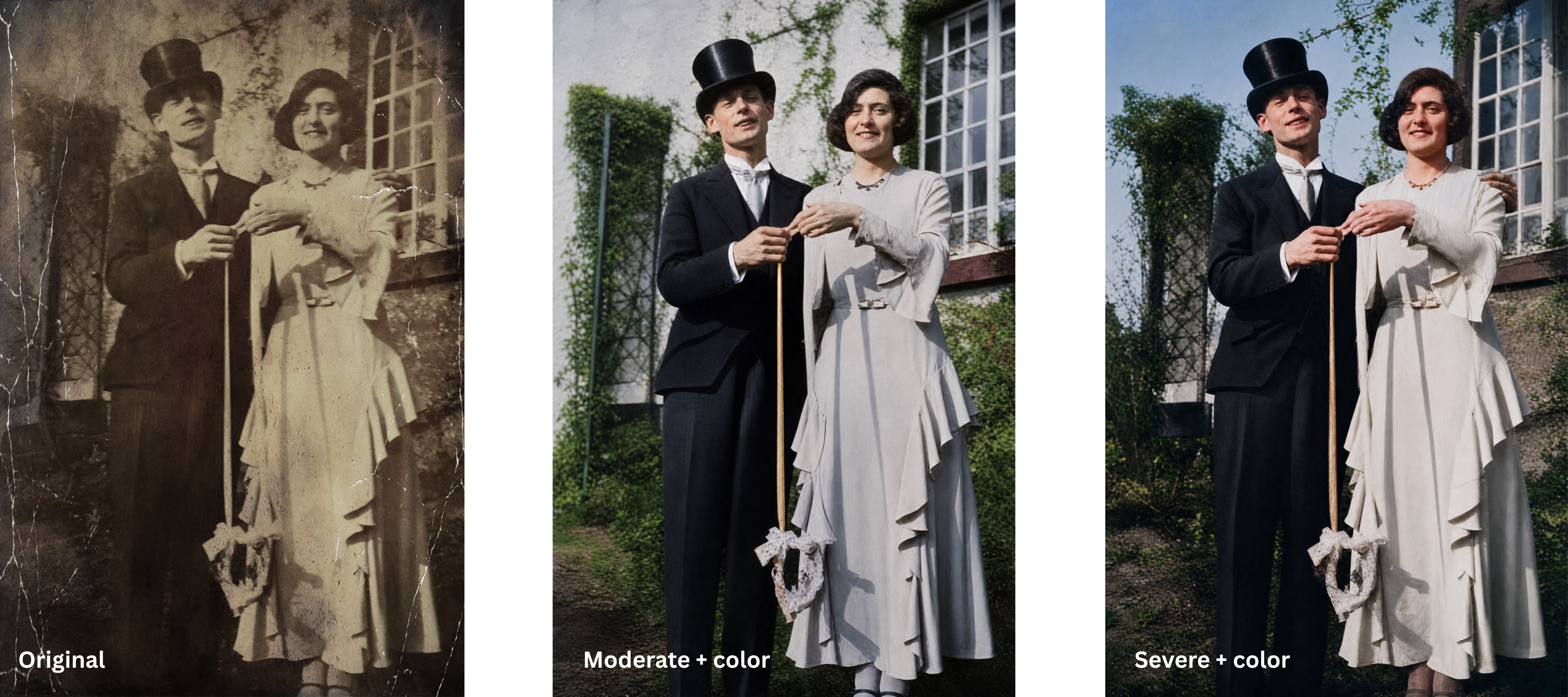
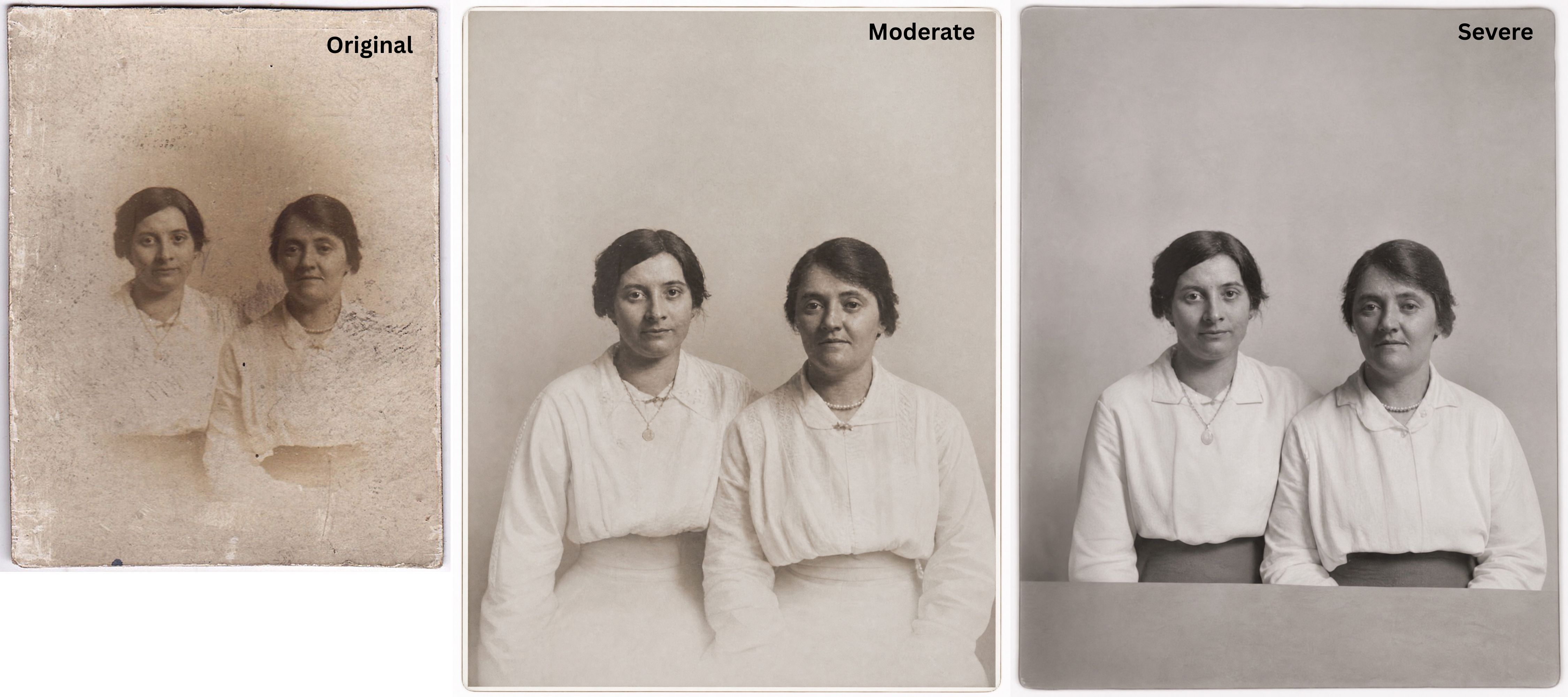
However, it’s worth pointing out that the result can be unpredictable if you’re working with very low-quality photos. For instance, when processing the third photo, the app began to “fill in the blanks” excessively and added details that aren’t present in the original image. The less information the original contains, the higher the risk of these details and distortions appearing.
Processing
Users must register before getting started, and you can restore around 1-2 photos using the free version. To continue, you’ll need to purchase credits or a subscription.
The PicWish interface is quite uncluttered and intuitive. Once you select Restore Old Photo from the list of tools, the editor will open. Then, you simply need to upload a photo from your device.
Once your image is uploaded, select one of three modes – Mild, Moderate, or Severe – from the left side of the screen and, if necessary, enable the option to add color.
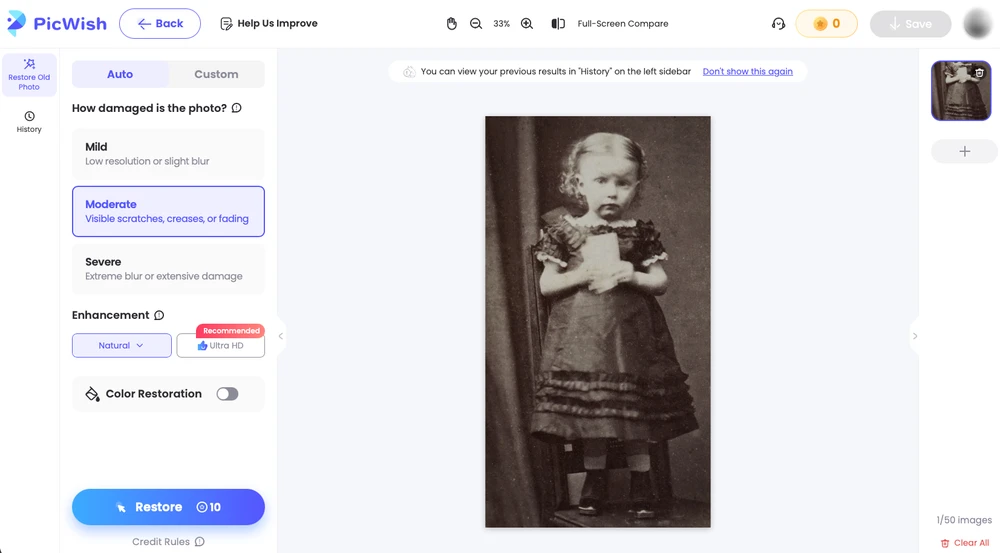
It’s important to note that different modes use up varying amounts of credits. Processing in the Mild mode costs 2 credits, whereas the Moderate and Severe modes cost 10 credits. As a result, actively testing different restoration modes can quickly deplete your available balance. For instance, it required over 100 credits to process the photos featured in this review using all the different modes.
Even though it’s possible to upload up to 50 images in one go, you cannot simultaneously restore multiple photos using the same settings. In practice, each image must be processed individually.
Additionally, PicWish allows you to customize the restoration process using a custom prompt. This feature can be useful if the standard processing modes are insufficient and you need to provide the app with additional instructions.
The free version has one notable advantage – you can download the final photos without watermarks or additional export restrictions.
Processing in the Moderate and Severe modes takes up to three minutes on average.
Before downloading the final images, you can compare the original and restored versions. However, using the zoom tool isn’t particularly convenient because it zooms in primarily on the central part of the image. Consequently, it can be challenging to compare a specific section of the original with the processed photo in detail.
Cost
PicWish offers two main payment options:
- purchasing credits — the minimum package starts at $12.99 for 300 credits;
- subscription — weekly, monthly, and annual plans are available. For example, the weekly subscription costs $5.99 and includes 90 credits.
The annual subscription with 450 credits per month costs $59.99.
When choosing a pricing plan, it is worth considering the cost of the specific processing mode. If you actively use the Moderate and Severe modes, which consume 10 credits per operation, you may run out of your credits pretty quickly.
Pros
- You can test this old photo restoration app for free using 1–2 images.
- Fairly accurate reconstruction of faces while preserving resemblance to the original.
- Simple and intuitive interface.
- Three restoration modes with varying processing intensities.
- Option to add color.
- Downloading the final image without a watermark, even in the free version.
Cons
- There is no full-fledged batch processing for multiple photos using the same settings.
- The Moderate and Severe modes consume a significant number of credits.
- When working with heavily damaged photos, the app sometimes adds details that aren’t present in the original.
- The before-and-after comparison mode is available but has an inconvenient and clunky zoom tool.
LetsEnhance
Output Result
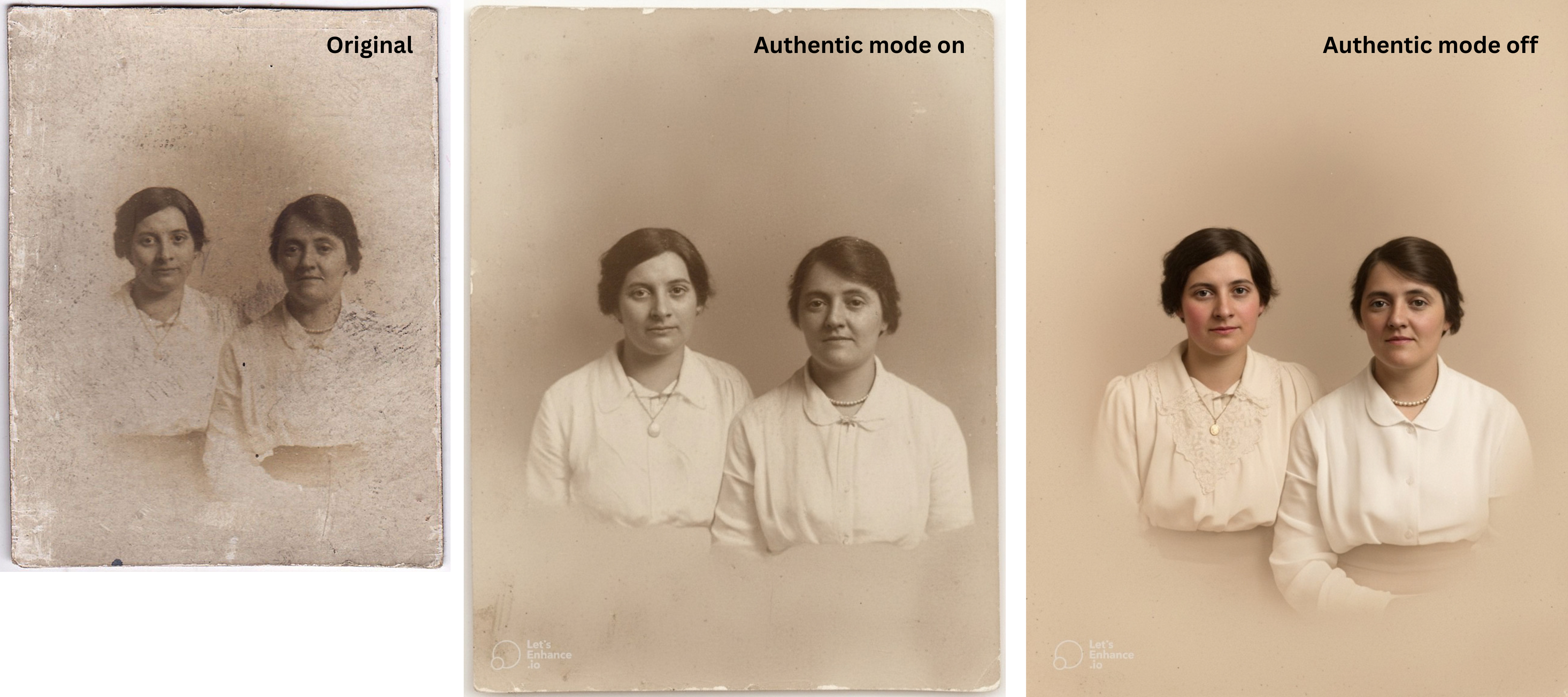
For restoring old photos, LetsEnhance offers two main processing modes: Authentic mode on and Authentic mode off.
When the Authentic mode is enabled, the app fixes defects and improves image quality while preserving the original image as much as possible. If the Authentic mode is disabled, color is added automatically. There is no separate colorization option within the old photo restoration tool, so restoration and color addition cannot be adjusted independently of each other.
For portrait photos, the developers also suggest using Upscale Prime, which is the tool designed to enhance images featuring people. Its purpose is to improve image quality while preserving natural skin texture and fine details.
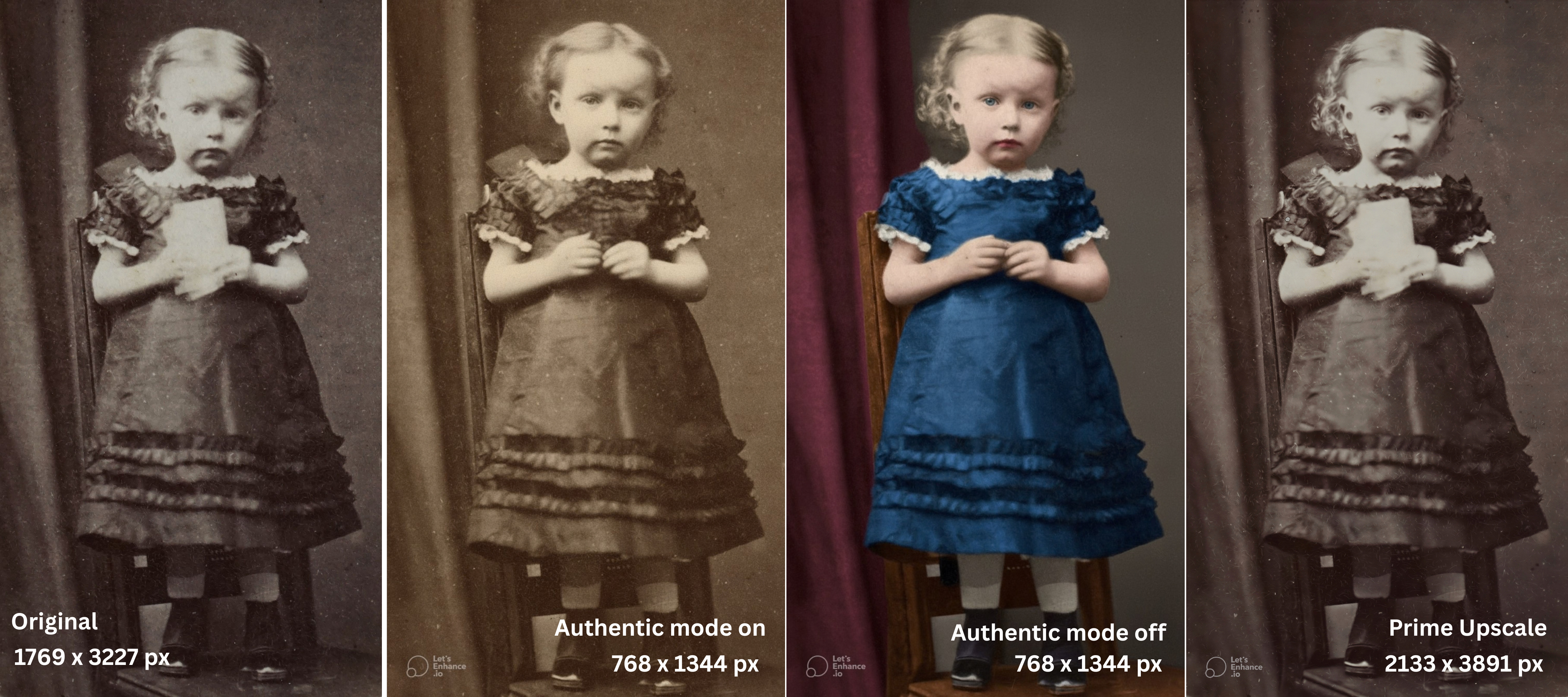
There’s something important you should know. The old photo restoration tool produces the final image with the maximum resolution of 1 megapixel. Therefore, if the original photo is high-resolution, its size will likely be reduced after processing.
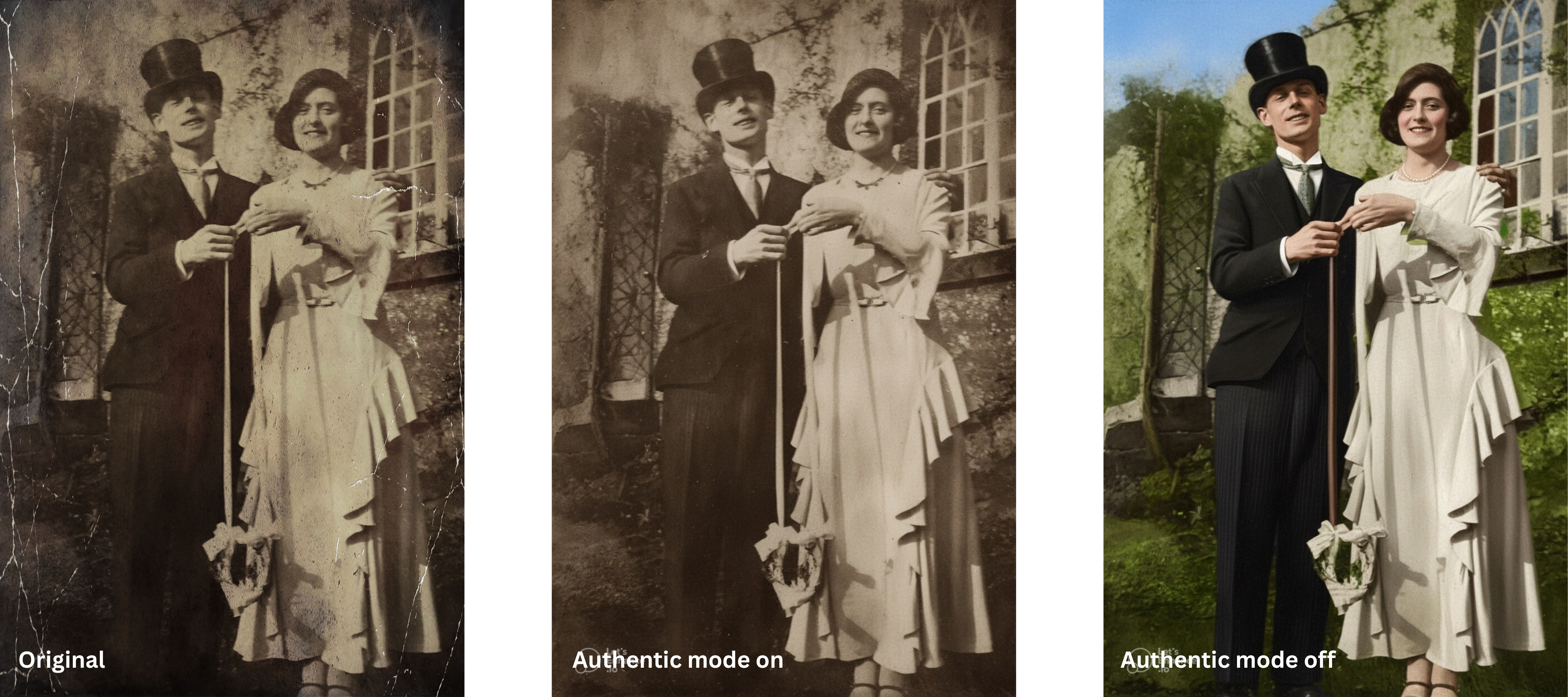
At the same time, LetsEnhance handles heavily damaged photos quite carefully. Even if the source image is of low quality or contains significant defects, the app doesn’t tend to over-interpret or “invent” missing details. Faces are restored accurately and, in most cases, retain a strong resemblance to the original.
Processing
As with PicWish, you need to sign up before you can start using the service. Once you’re registered, the free version provides 10 credits for testing the app to restore old photos.
Note that the free version has limits on the size of uploaded images: the resolution of the original file mustn’t exceed 24 megapixels. Photos can be uploaded either directly from a device or from Google Drive. The app supports JPG, PNG, and WebP formats.
One of LetsEnhance’s notable advantages is the ability to upload multiple photos at once and apply the same processing settings to them. This significantly simplifies the workflow when restoring a batch of old images.
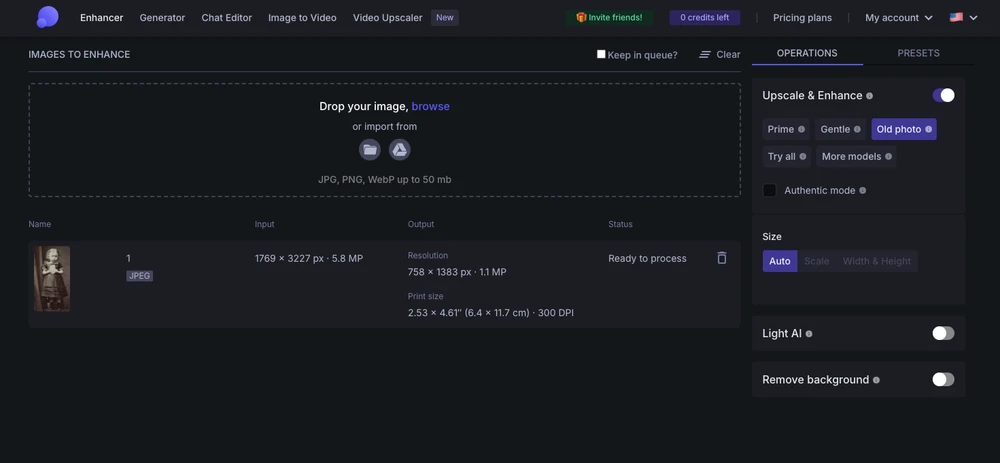
After uploading a photo, the app immediately displays its resolution both before and after processing. This is convenient, as it allows you to see the size of the final file before starting the restoration process.
In the editor on the right, make sure that the Old photo mode is selected and, if necessary, enable the Authentic mode. Once all the necessary options are chosen, tap the Enhance button at the bottom of the screen to start the processing.
Processing a single photo costs 1 credit and typically takes up to one minute.
Once processing is complete, the app displays a thumbnail of the final image. Click on it to open the preview section and compare the original and the restored version in detail. Unlike PicWish, the before-and-after comparison here is more user-friendly and allows you to have a closer look at whatever area of the image you want.
You can download the restored photo to your device. However, when using free credits, a watermark with the LetsEnhance logo is added to the image.
Cost
For casual users who process fewer than 1,000 images per month, LetsEnhance offers two main payment options:
- purchasing credits — starting at $9 for 20 credits without a subscription;
- subscription — from $12 per month for 100 credits.
Since the standard restoration of a single old photo costs 1 credit, it’s quite easy to calculate the processing cost in advance. This is particularly convenient when working with a large number of images.
Pros
- User-friendly and intuitive interface.
- It’s convenient to preview and compare the before-and-after versions.
- Ability to batch process multiple images with the same settings.
- 10 free credits for testing the app.
- Restoring a single old photo costs just 1 credit.
- The output result remains close to the original, even when working with heavily damaged images.
- You can upload photos from the device or Google Drive.
Cons
- Limited choice of restoration modes.
- There is no separate colorization option; adding color is linked to the Authentic mode setting.
- Image resolution might decrease since the old photo restoration tool produces files only with the resolution of 1 megapixel.
- A watermark is added to photos processed using free credits.
- Additional restrictions on the size of uploaded images apply to free users.
Final Comparison of the Apps to Restore Old Photos
We have examined each of the three old photo restoration apps in detail using the same set of photos. Now, let’s summarize the key differences in a table to make it easier to compare the terms of free use, restoration capabilities, and processing costs.
| Feature | WowEnhance | PicWish | LetsEnhance |
|---|---|---|---|
| Free version | Up to 3 photos per day | On average, 1–2 photos | 10 credits |
| Registration | Not required | Required | Required |
| Cost per 1 processing | 1 credit | 2–10 credits | 1 credit |
| Colorization | Separate Colorize option | Available in Moderate and Severe modes | Via / Only in the Authentic mode off |
| Batch processing | In the paid version | No | Yes |
| Watermark in the free version | No | No | Yes |
| Restoration modes | Mild, Strong | Mild, Moderate, Severe | Authentic mode on/off |
| Resemblance to the original in our tests | Strong | Strong, but less consistent with heavily damaged photos. | Strong |
| Resolution of the final image | Remains the same or increases | May decrease | Up to 1 MP |
| Processing speed in our test | A few seconds | Up to 3 minutes | Up to 1 minute |
As the comparison table shows, the differences between the apps extend beyond just the quality of restoration. They offer different pricing models, impose different limitations on their free versions, and offer varying capabilities for handling multiple photos.
Therefore, when choosing a tool to restore old photos, you need to take into consideration the output result, the number of photos you need to process, whether colorization is required, and the importance of preserving the original resolution.
In Conclusion
Testing showed that all three old photo restoration apps are capable of substantially enhancing old photos, removing some damage, and restoring image details. However, their approaches to restoration and terms of use vary considerably.
When choosing a tool to restore old photos, it’s important to consider the quality of the output result as well as some other factors. The capabilities of the free version, the cost per processed image, the availability of batch processing, the inclusion of colorization, and limitations on the output file resolution all play a significant role. Therefore, to determine which app suits you best, you need to figure out what exactly the task at hand is and how many photos you need to process.
Before purchasing credits or a subscription, it makes sense to try the free version and test the app of your choice using your own photos. This will allow you to evaluate the quality of restoration and determine how well the chosen tool works with your specific images and use case.