If you sell goods, individual items, or spare parts online, you’ve likely had to replace the background of an original photo with a white one at least once. A white background focuses the attention on the product itself, while the overall image looks neater and meets marketplace requirements.
Until recently, photographing products against a white background was a rather labor-intensive process. It usually took a great deal of preparation to get a simple, minimalistic shot. You had to select the background and lighting, prepare the product for the shoot, set the camera correctly, and try to avoid unwanted shadows or glare.
The development of AI tools has significantly simplified this task. It is no longer necessary to organize a dedicated product photoshoot solely to achieve a perfectly white background. Nowadays, you can simply take photos of an item in the comfort of your home using a smartphone or a camera. Then upload your photos to an AI-powered online app, which can automatically detect the object’s edges, remove the original background, and replace it with a white one – and you’re good to go!
Some tools also allow you to adjust the lighting, shadows, and other imperfections in the photo.
So, today, you don’t really need to figure out how to add a white background to a photo. Instead, you need to decide which AI tool can handle this task best and produce the desired result.
We’ve tested several free online AI tools and, in this guide, you’ll see how well they can replace the original background with a white one.
Why Does a White Background Matter in Product Photography?
A white background has long been the standard choice for product photography – and not just for aesthetic reasons. It helps present the product with maximum clarity and makes the image versatile for future use.
Focus On the Product
A white background eliminates unwanted details and visual clutter, focusing the buyer’s attention on the product. The item’s color, shape, texture, and fine details become more noticeable, while the product listing looks neater.
Unified Style of a Catalog
When product photos share a consistent style, the storefront looks more cohesive and professional. This is especially evident in catalogs featuring a large number of products, where varying backgrounds can quickly create a sense of visual chaos.
Versatility
A photo with a neutral white background is easier to use across various platforms –online stores, marketplaces, advertisements, or catalogs. It’s also easier to adapt such an image to different designs or re-edit it, if necessary.
That is precisely why the ability to quickly and neatly add white background to a photo is useful both for professional sellers and those who simply need to prepare a few photos to list a product online.
AI Tools For Adding a White Background to a Photo
We’ve tested five online apps that allow you to add a white background to a photo for free. We processed the same product images with each one to make our comparison as objective as possible.
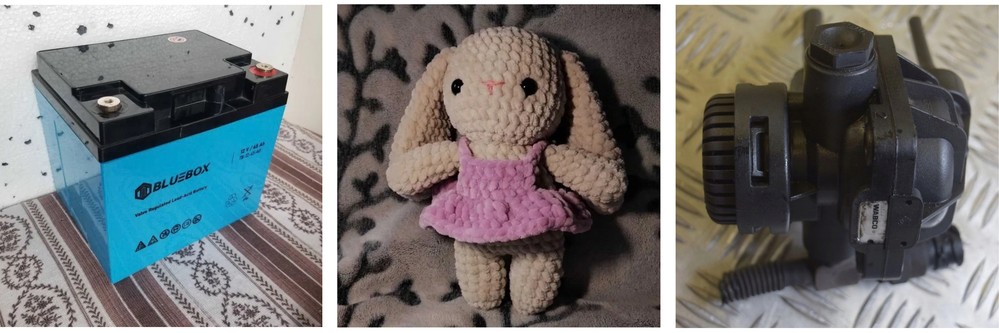
We evaluated the quality of background removal, the accuracy of object edge detection, as well as ease of use, processing speed, the capabilities of the free version, and additional features. Also, we paid special attention to how easy it would be to achieve the necessary result for a user who’s never worked with image editing software before.
Consequently, the guide includes five tools for adding white background to a photo that take different approaches to the same task – ranging from the simplest automatic background replacement to more feature-rich editors offering batch processing and studio-style backgrounds.
1. WowEnhance
WowEnhance’s Remove Background tool actually offers a variety of solutions.
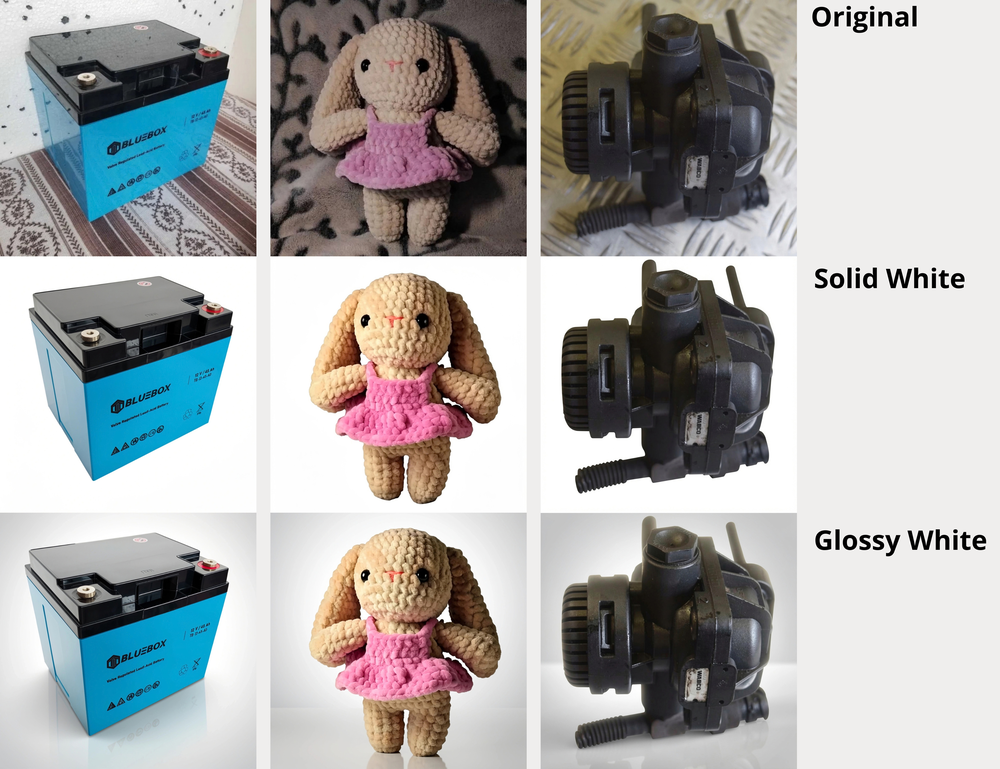
It allows you to simply remove the background and save your product photo with a transparent background in PNG. You can also replace the original background with the classic white one or opt for a more realistic studio setting. If you choose the latter, the app will add natural lighting and shadows, as well as walls and the surface on which the object rests.
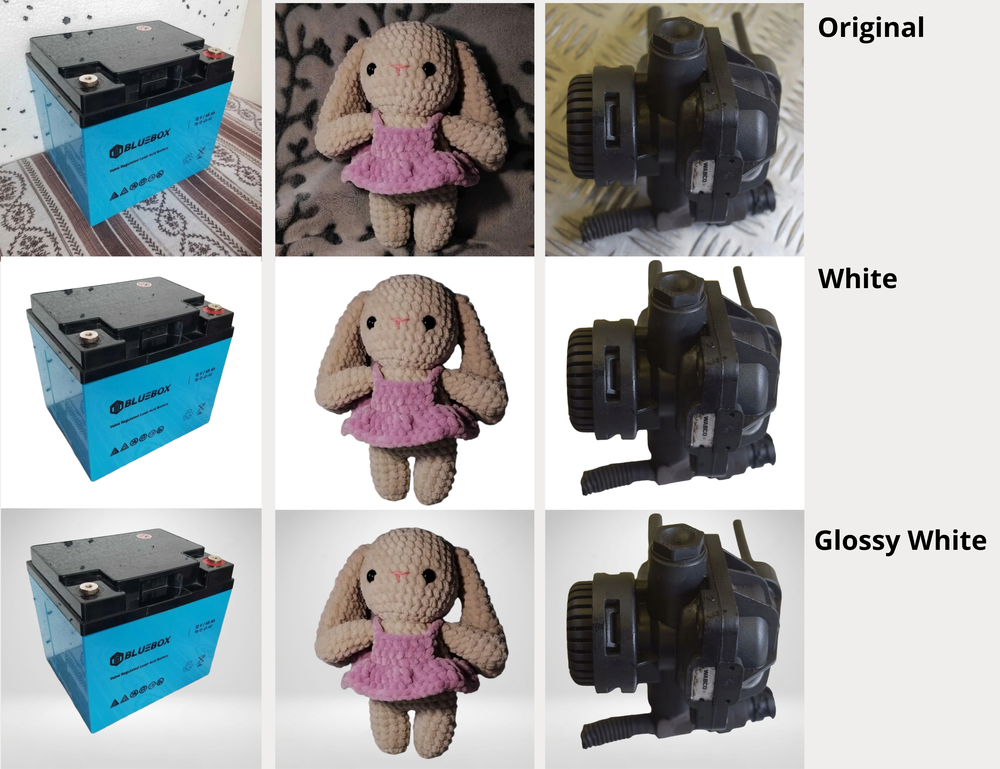
In all three test photos, the app accurately identified the object’s edges, and the white background was added without noticeable distortion.
At the same time, the tool adjusted the lighting, making the products appear sharper and more defined.
The app’s interface is very simple. It’ll take you just a few taps and seconds to get the final image.
The free version allows you to process up to three photos per day – but please note that you can only work on one image at a time. No registration is required.
Additional features:
- uploading images from your device, cloud storage, or directly from a website;
- a wide selection of color and studio-style backgrounds;
- cropping the image to the desired aspect ratio right before downloading;
- adding your own logo or watermark directly within the app.
2. Canva
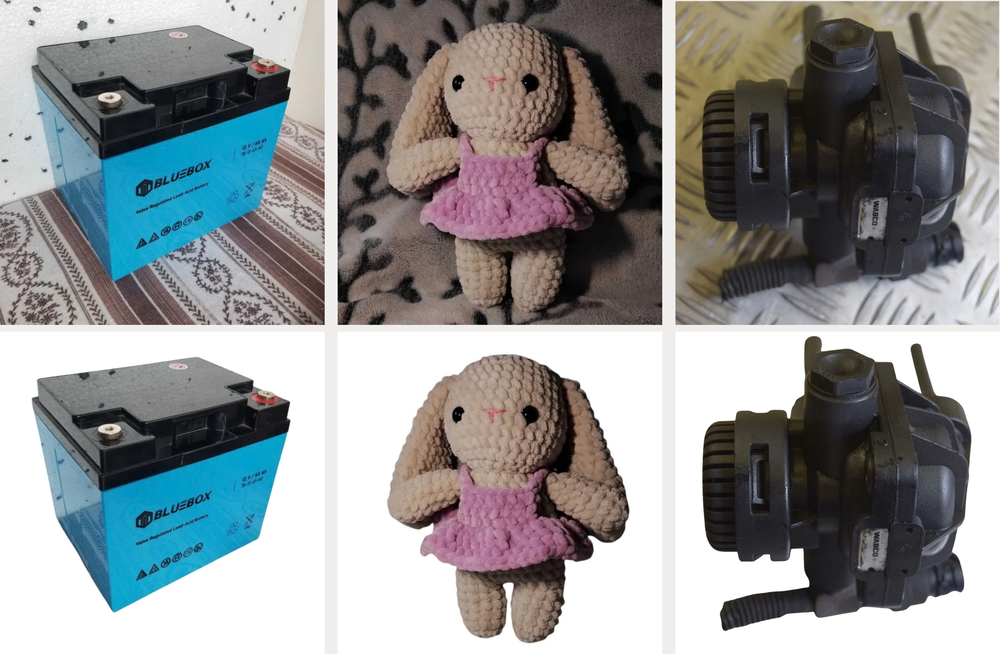
The Background Removal tool in Canva automatically removes the original background and replaces it with a white one. The entire process takes just a few seconds and is pretty straightforward. Simply visit the tool’s page, click Upload, and drag and drop a photo from your computer. After that, all you’ll need to do is download the final image.
If you only need to add a white background to one or a few photos, this tool is well suited for the task. No registration or payment is required to use it.
What are the drawbacks?
First of all, the tool doesn’t improve the quality of the original photo. If the subject was shot in poor lighting, turned out blurry, or out of focus, these defects will remain after processing. The app only changes the background.
Secondly, you cannot add white background to multiple photos simultaneously. The images must be processed one by one.
Thirdly, the options for selecting alternative backgrounds here are quite limited. For more advanced editing and access to additional design options, you will need to switch to the Canva editor, where some features and content are available only on paid plans.
So, to sum up, Canva would be a perfect choice for only one specific task: quickly adding a white background to an individual photo without sign-up or making any other changes to the image.
3. Pixelcut
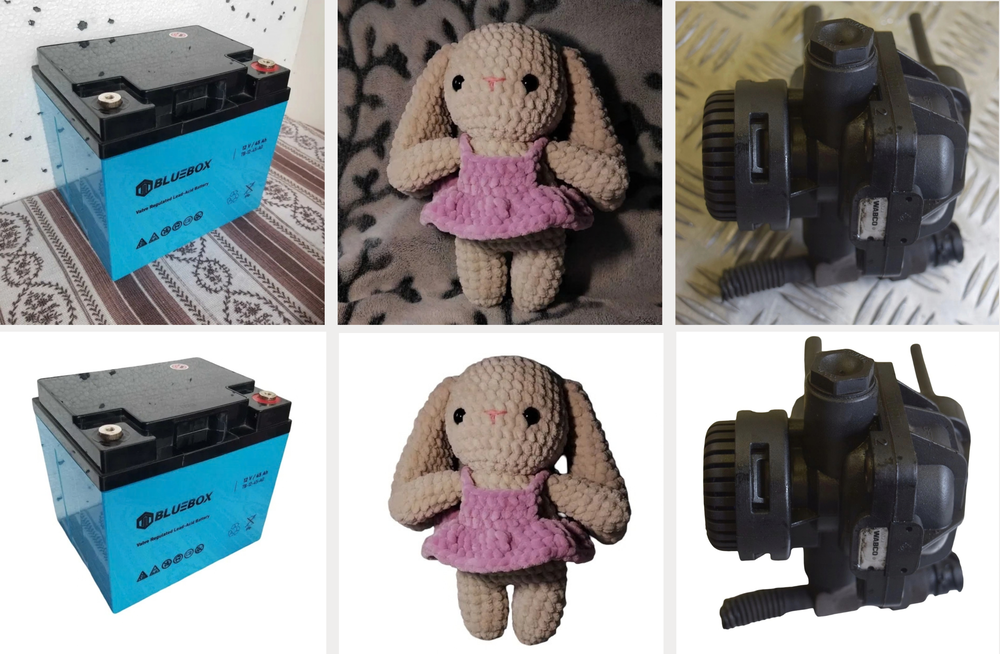
The output result is very similar to Canva. The object is cut out cleanly and accurately, then a white background is added automatically. At the same time, the product image itself remains virtually unchanged: the app doesn’t fix the lighting, sharpness, or other potential defects of the original photo.
However, in terms of ease of use, Pixelcut proved to be less intuitive.
First of all, you need to sign up to use the app for adding white background to a photo.
Secondly, once the background is removed, the user is taken to an editor with additional tools. Here, you can generate a new background using a prompt, adjust the object’s shadow, and make use of other editing features. However, navigating this editor can be challenging at first. Also, generating some backgrounds can take a while. As a result, the interface tends to complicate the simple task of background replacement, especially for inexperienced users.
Thirdly, the selection of available backgrounds changes every time you upload a new image. Because of this, it can be difficult to choose the same design option for multiple photos.
If you only need to add a white background without further editing, the free version’s capabilities should be more than enough for you: it allows you to process up to three photos per day.
4. PhotoGrid
Just like WowEnhance, PhotoGrid allows you to replace the original background with a classic white one as well as opt for a realistic studio-style background of a light color.
One of the tool’s key advantages is that it can be used for free and without sign-up.
Furthermore, unlike the apps discussed earlier, PhotoGrid allows you to upload up to five photos in one go and edit them in the same style. You don’t need to re-upload images to try out different layout options, either – simply switch between available backgrounds and download the results you like best. This saves a significant amount of time, especially when working with a batch of multiple photos.
The gallery of ready-made backgrounds is quite diverse. When you try to apply one of the provided options, the result is immediately displayed in the editor window. The interface is simple and intuitive, so you can get the hang of the basic functions and features relatively quickly.
What are the drawbacks? Sometimes the app makes minor errors when determining the edges of an object. For example, this is noticeable in our test photo featuring a car part. Aside from that, the product itself isn’t enhanced in any way: the app changes the background without fixing the lighting, sharpness, or other flaws of the original photo.
The main advantage of PhotoGrid is the ability to process multiple photos in the same style for free, including the use of studio backgrounds.
5. Pixlr
Here’s our final handy tool for adding white backround to a photo. And yes, you can use it for free and without registration!
In fact, Pixlr’s main advantage is the ability to batch process images at no extra cost. Simply upload multiple photos, select a white background, and download all the final images in a single ZIP file.
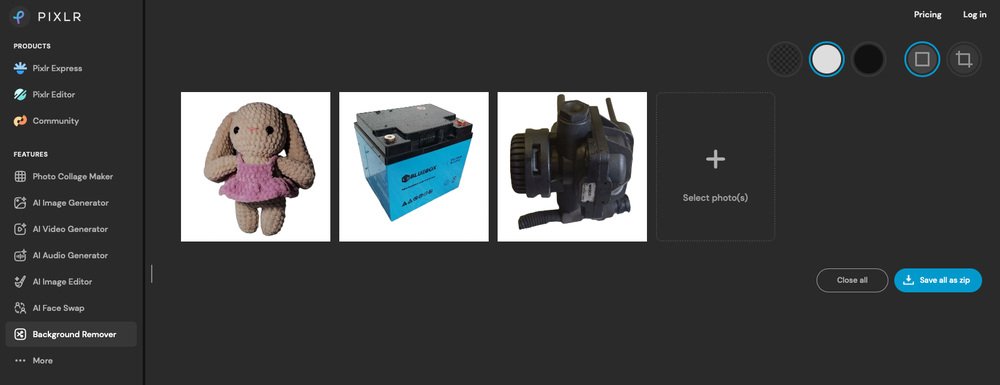
Some test photos show minor inaccuracies in defining object edges – for instance, this is noticeable in the third image. That said, the app generally does its main job quite well: a white background is added automatically in just a few seconds.
Additional features include completely removing the original background and replacing it with a transparent or black one.
Adding white background to an image doesn’t improve its quality: the lighting, sharpness, and other elements of the original photo remain unchanged. There’s a feature called Fine Tune. It can be enabled for each image, though its capabilities and how it works are not entirely obvious.
Pixlr is particularly convenient for simple batch processing.
Comparison of AI Tools to Add a White Background to a Photo
The primary task is to automatically remove the original background and replace it with a white one. All five tools do this well. The main differences lie in the capabilities of the free version, the availability of batch processing, and additional features.
| WowEnhance | Canva | Pixelcut | PhotoGrid | Pixlr | |
|---|---|---|---|---|---|
| Free version | Up to 3 photos per day | Yes | Up to 3 photos per day | Yes | Yes |
| Registration | Not required | Not required | Required | Not required | Not required |
| Batch processing | Paid version only | No | No | Up to 5 photos | Yes |
| White background | Yes | Yes | Yes | Yes | Yes |
| Other backgrounds | Color and studio-style | Limited choice | Yes | Color and studio-style | Black |
| Enhancement of the original photo | Yes | No | No | No | No |
| Additional features | Cropping, logo, watermark | Canva Editor | AI-generated backgrounds, shadows | Different backgrounds | Fine tune, transparent background |
Summing Up
Our testing showed that nowadays, you don’t need to use a complex image editor or purchase a subscription to simply replace a background: all five tools we reviewed allow you to generate a product photo with a white background for free in just a few seconds.
However, the apps differ when it comes to additional features. Availability of batch processing is important if multiple photos need to be handled simultaneously. Studio backgrounds and lighting adjustments are useful for enhancing images and creating more appealing and natural-looking product photos, whereas a simple tool that automatically removes the original background often suffices for a one-off task.
So, before you purchase a subscription, it’s better to test the free version using your own images and choose the tool that performs best with your specific product photos and typical volume of processing.