Sometimes a photo looks great but is just too small for a specific task. Maybe you want to print an old snapshot in a large format. Maybe you cropped an image too heavily, and now it’s not as sharp and detailed as you want. Or maybe you finally found an image that’s perfect for your project, but its resolution isn’t high enough. Unfortunately, simply enlarging that image won’t be a good solution: the pixel count will increase, but no new detail will actually be added.
Modern AI tools have a different approach to how to increase photo resolution. They use algorithms that can make an image bigger, sharper, and more detailed.
In this guide, we explore how this type of resolution upscaling works, when it is truly beneficial, and what to look for when choosing an AI upscaler.
Why Image Resolution Matters
Resolution directly affects the level of detail in an image and whether it’ll look blurry when enlarged. For digital images, resolution is typically specified in pixels – for example, 1920 × 1080 or 4000 × 3000. When printing, DPI (dots per inch) is also a key factor, determining the sharpness of an image at a specific physical size.
The more pixels a photo contains, the more it can be enlarged without a noticeable loss of quality. Low-resolution images, by contrast, quickly lose clarity and acutance when scaled up: object edges become blurred, fine details disappear, and individual pixels become visible.
This difference is particularly noticeable if you try to view an image on screens of different sizes. A photo might look excellent on a small smartphone screen but suffer a significant drop in quality when displayed on a large monitor or printed as a poster. If, upon zooming in, you see jagged individual pixels instead of smooth outlines and fine details, it means the original resolution is insufficient for the chosen size.
Why You Should Increase Photo Resolution Using AI
Traditional image-upscaling methods are based on interpolation: the program creates new pixels based on the values of neighboring ones. This allows the size to be increased but doesn’t necessarily make the photo more detailed.
AI upscalers work differently. Machine learning models analyze the image content and reconstruct missing details during the upscaling process. As a result, they can increase pixel count, sharpen outlines, reduce artifacts, and improve texture rendering. However, it is important to note that AI cannot faithfully restore all the information missing from the original – in practice, the algorithm recreates some details based on learned patterns.
Here are the main advantages of this approach:
- Restoration of details. AI algorithms can enhance fine details, contours, and textures that are difficult to distinguish in the original image.
- Reduction of artifacts. When upscaling, it is possible to simultaneously reduce pixelation, blocky compression artifacts, and other defects.
- Time savings. You won’t have to manually configure numerous parameters since most AI tools process images automatically.
- Significant increase in size. Many apps allow you to upscale an image several times over, which is useful when preparing materials for print or working with heavily cropped photos.
- Noise reduction. Some AI upscalers reduce digital noise while increasing resolution, which is particularly useful for photos taken in low-light conditions.
How to Increase Photo Resolution Without Noticeable Quality Loss
The process of increasing resolution using AI usually takes a few minutes and requires no special skills. However, it’s easier to achieve a good result if you follow a few rules:
- Use a photo of the highest possible quality. If there are multiple versions of the photo you want to upscale, choose the one with the highest resolution and minimal compression. The more information the original image contains, the easier it is for the algorithm to produce a natural-looking result.
- Don’t go for the maximum upscaling option unless necessary. Is it enough for your task to double the size of your image? Great, then, there is no need to jump straight to 8x upscaling. When the app has to make an image significantly bigger, it has to reconstruct a lot more details – and that can sometimes lead to unwanted distortions.
- Disable additional enhancements if they aren’t needed. Some apps automatically sharpen images, remove noise, or retouch faces alongside upscaling. While these photo enhancements can improve a photo, they sometimes make the result look less natural.
- Zoom in when checking the final image. After processing, it’s better to zoom in and carefully examine the result at 100% scale. This makes it easier to spot small artifacts and other AI errors that might go unnoticed in a downscaled preview.
- Compare the upscaled image with the original. A sharper image doesn’t always mean a higher-quality one. Compare the processed version with the original to ensure AI hasn’t altered important image elements or introduced noticeable artifacts.
How to Choose AI App for Image Upscaling
There are plenty of online tools for increasing image resolution. Generally, they are quite easy to use: simply open the app’s webpage, upload a photo, and wait for it to be processed. Some tools automatically select the settings, while others allow you to choose the level of upscaling – for example, 2x, 4x, or higher.
When choosing an app, it is worth looking for a free trial option. The best choice is a tool that allows you to process a few images for free before committing to a subscription or purchasing credits. This gives you the opportunity to test the app on your own photos and see if you like the results, as well as compare different apps and select the one that best meets your needs.
How to Check Whether an AI Upscaler Is Good
To assess the quality of upscaling more objectively, it’s recommended to test the app of your choice on various types of images. That’s how you will be able to truly determine if it’s good or not. After all, it’s possible that the app you like handles portraits well but performs noticeably worse when reconstructing text or fine natural textures. The sooner you figure this out, the better.
You can use the following types of images for testing:
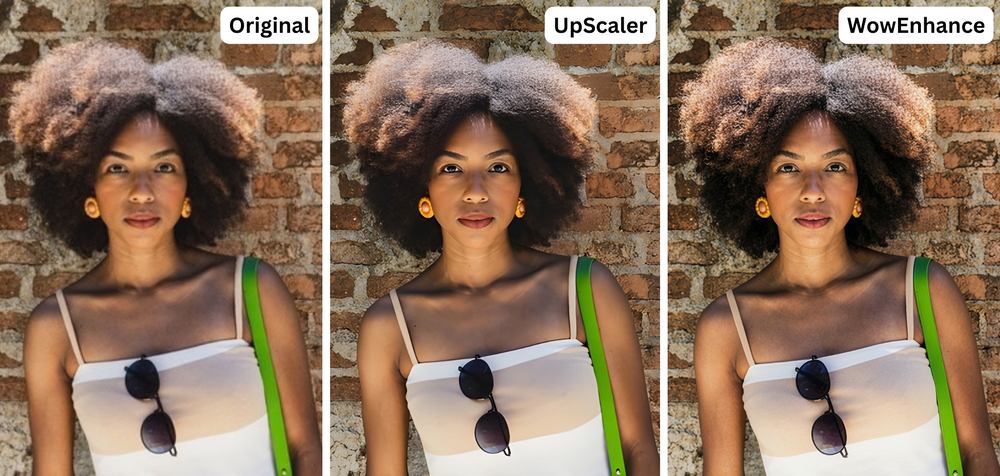
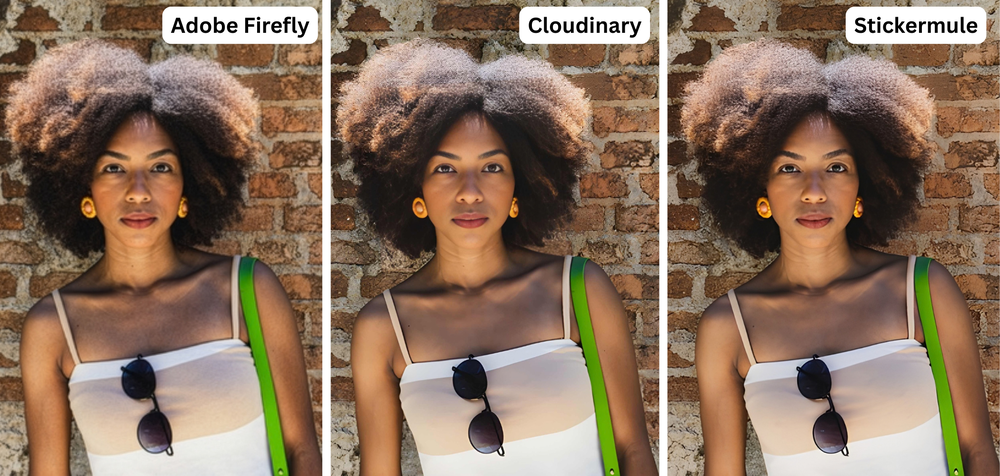
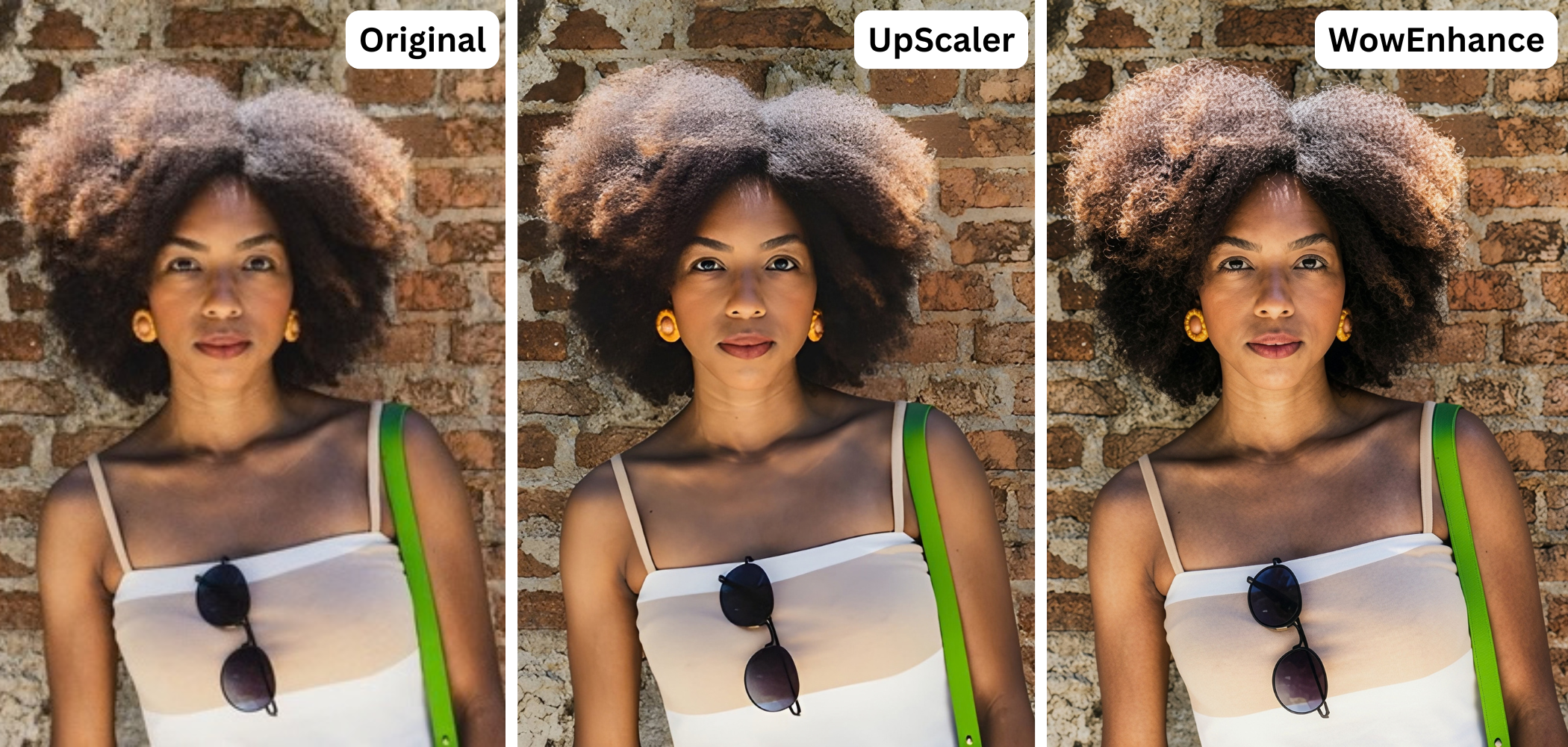
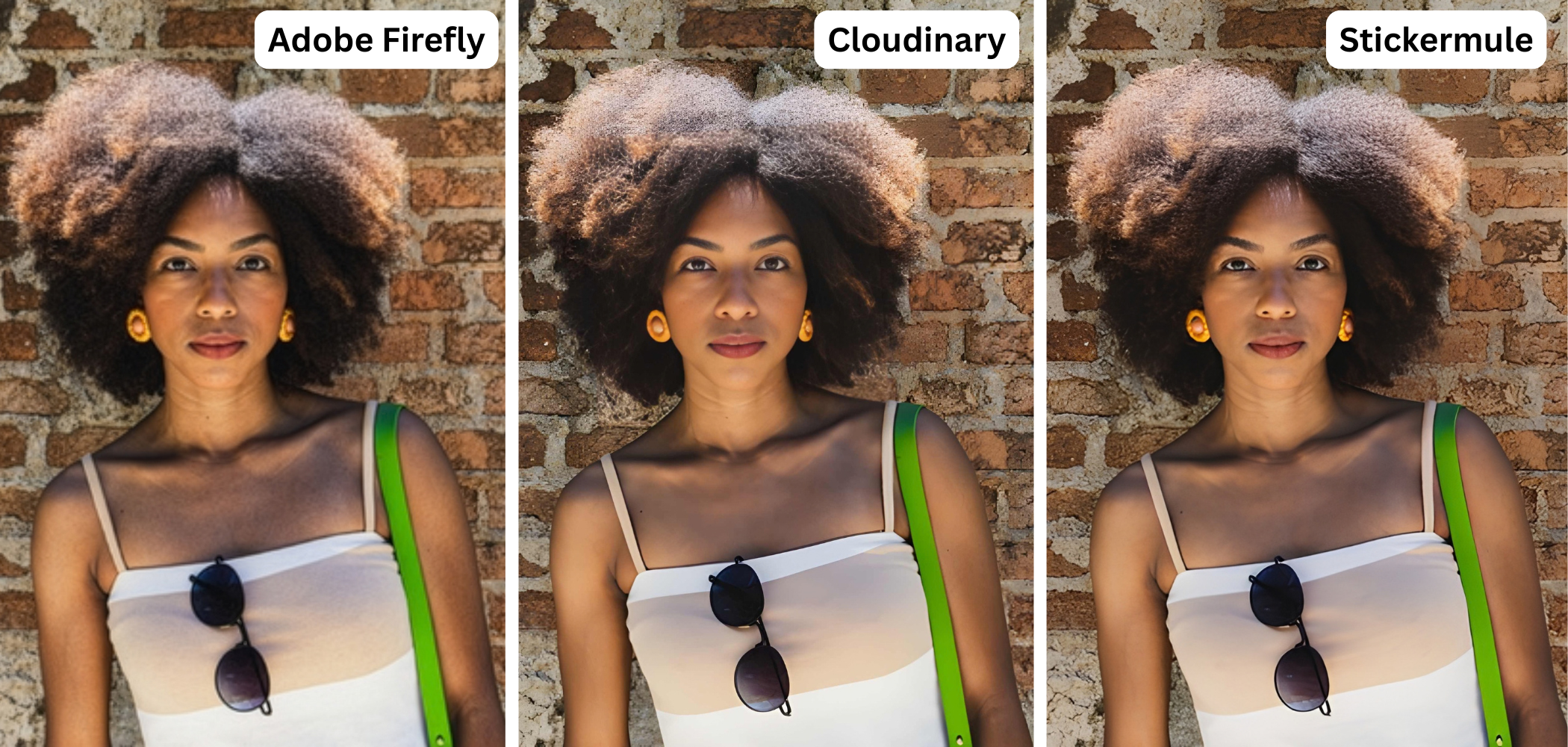
- Portraits and face restoration. Pay attention to whether natural skin texture and facial features are preserved. Some algorithms make the skin too smooth or add details that aren’t present in the original, causing the face to look unnatural after processing.
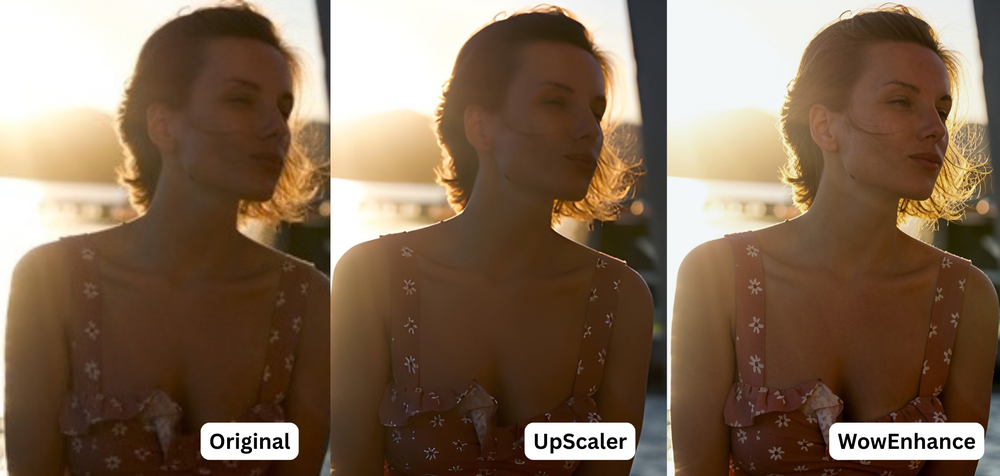
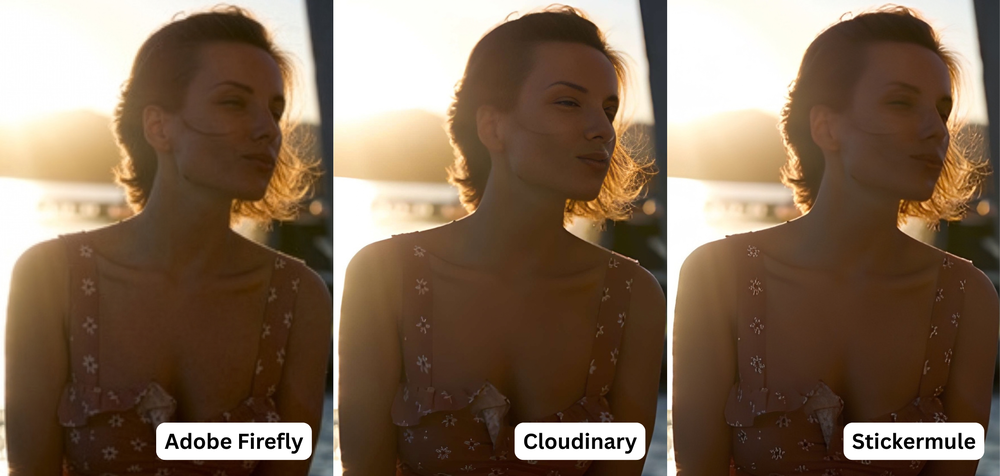
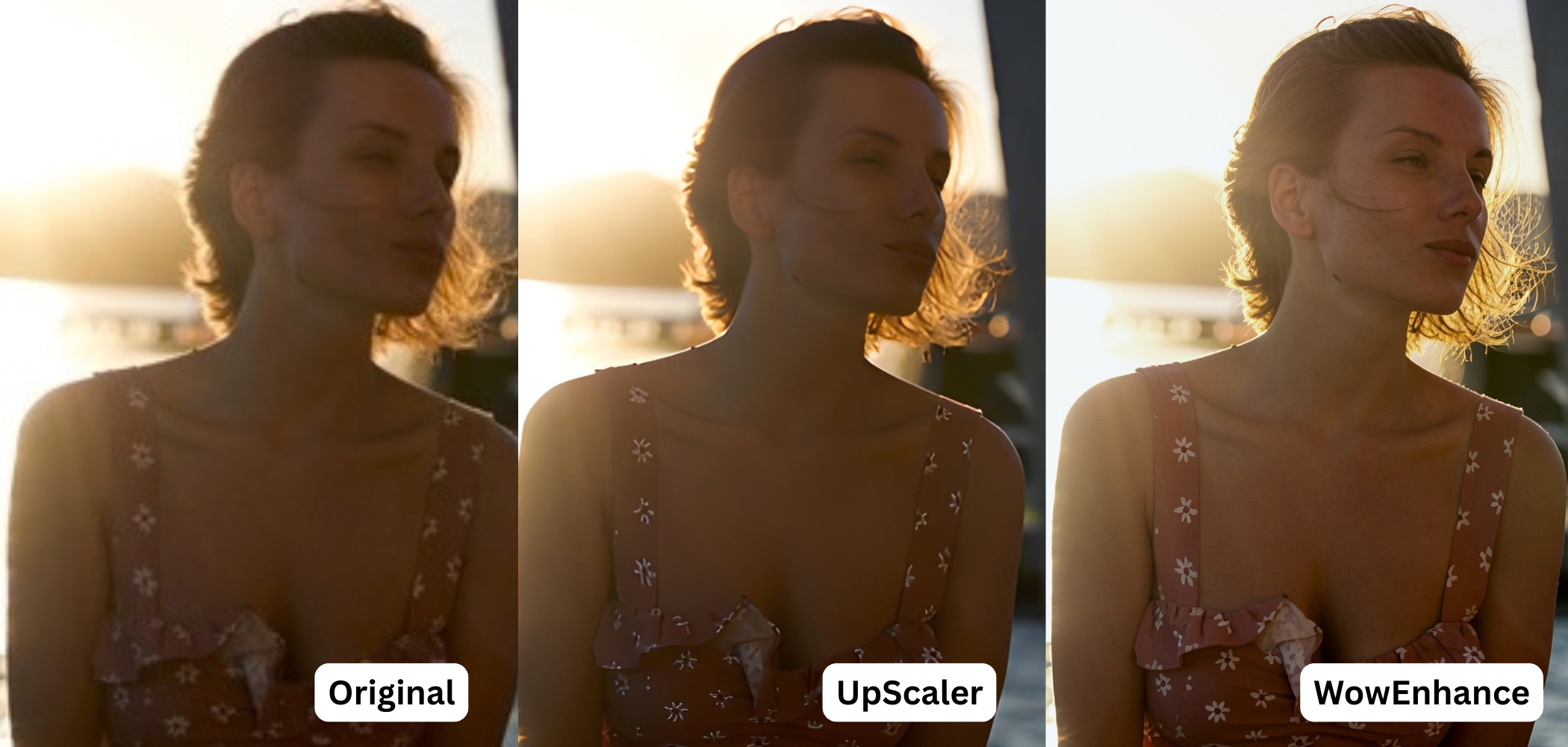
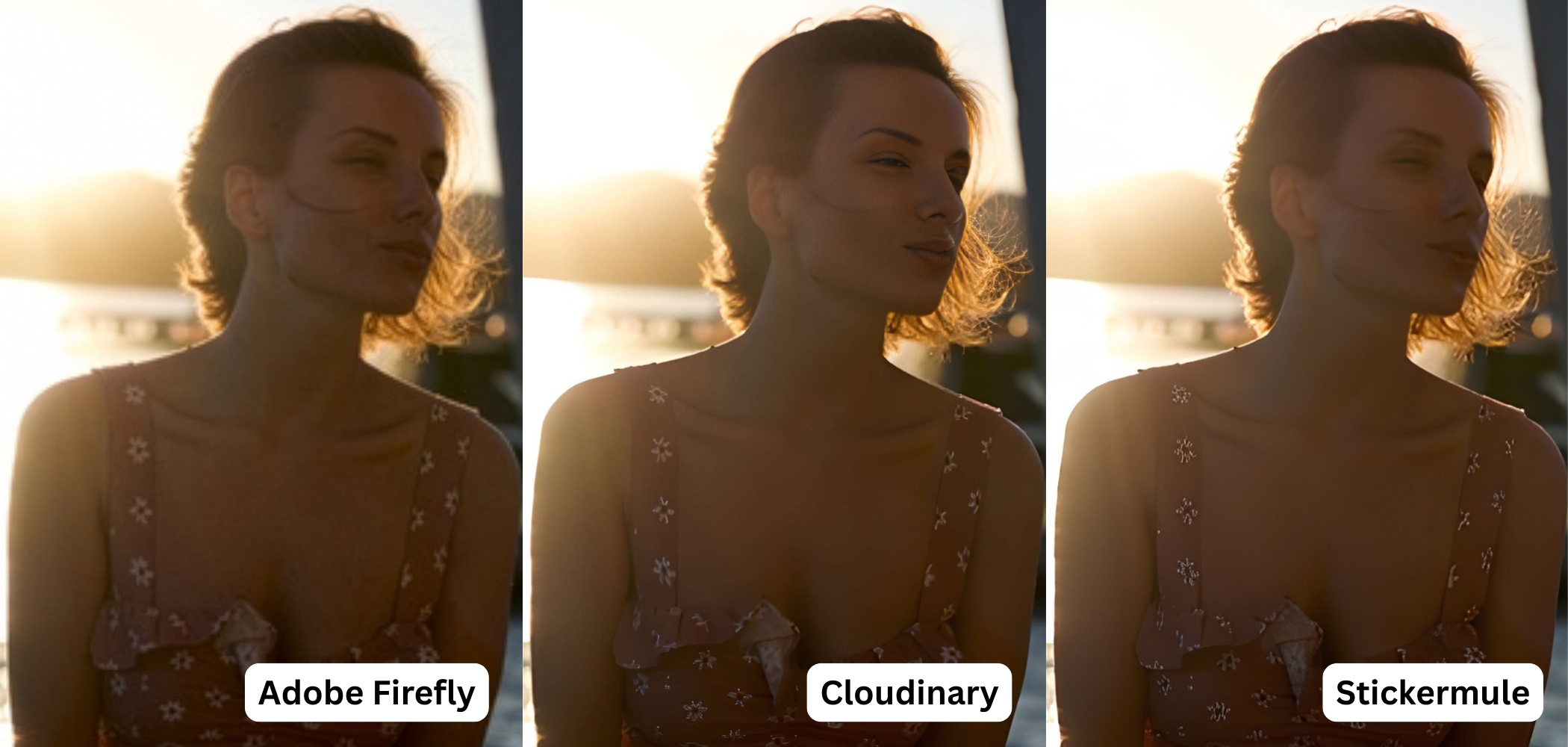
- Photos taken in poor light. Take a closer look at what the app does with fine details – are they preserved or distorted? Does the AI upscaler reduce the noise? Some tools automatically apply image quality enhancements alongside upscaling, so it is important to evaluate both the sharpness as well as whether the result looks natural.
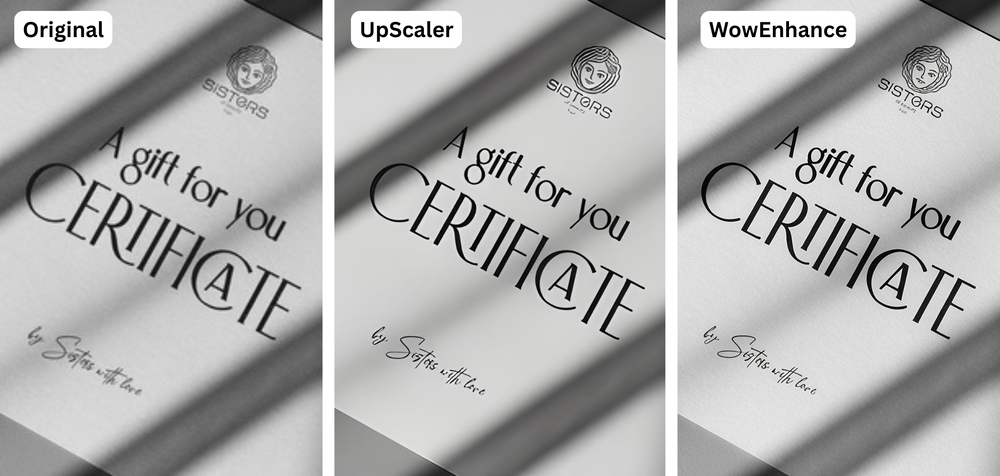
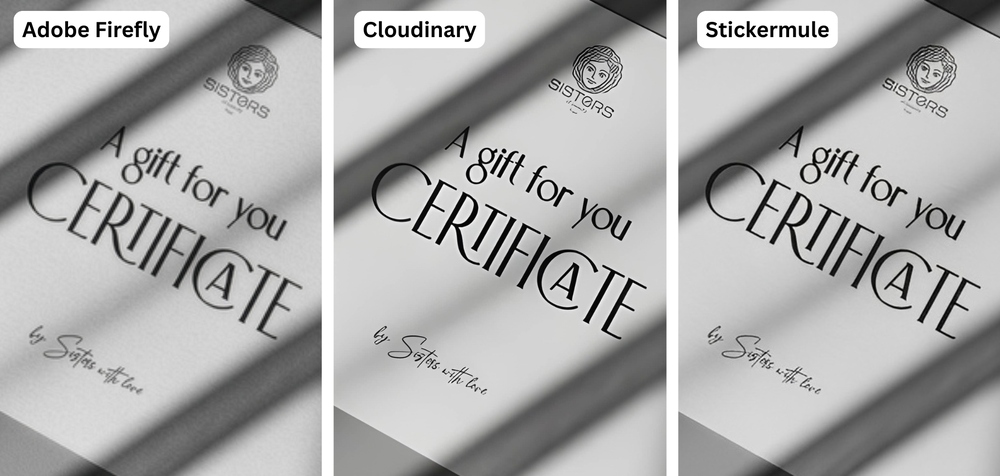
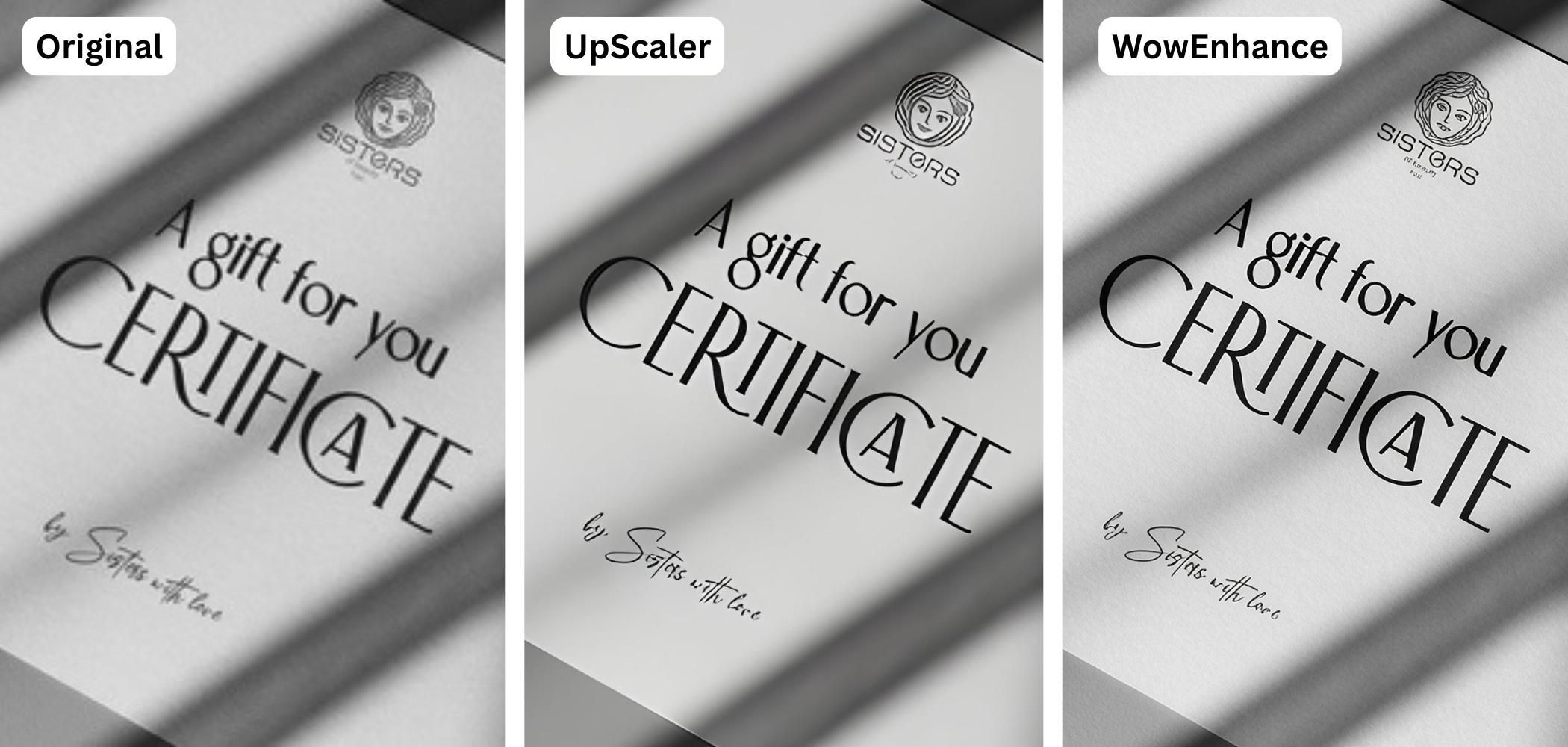
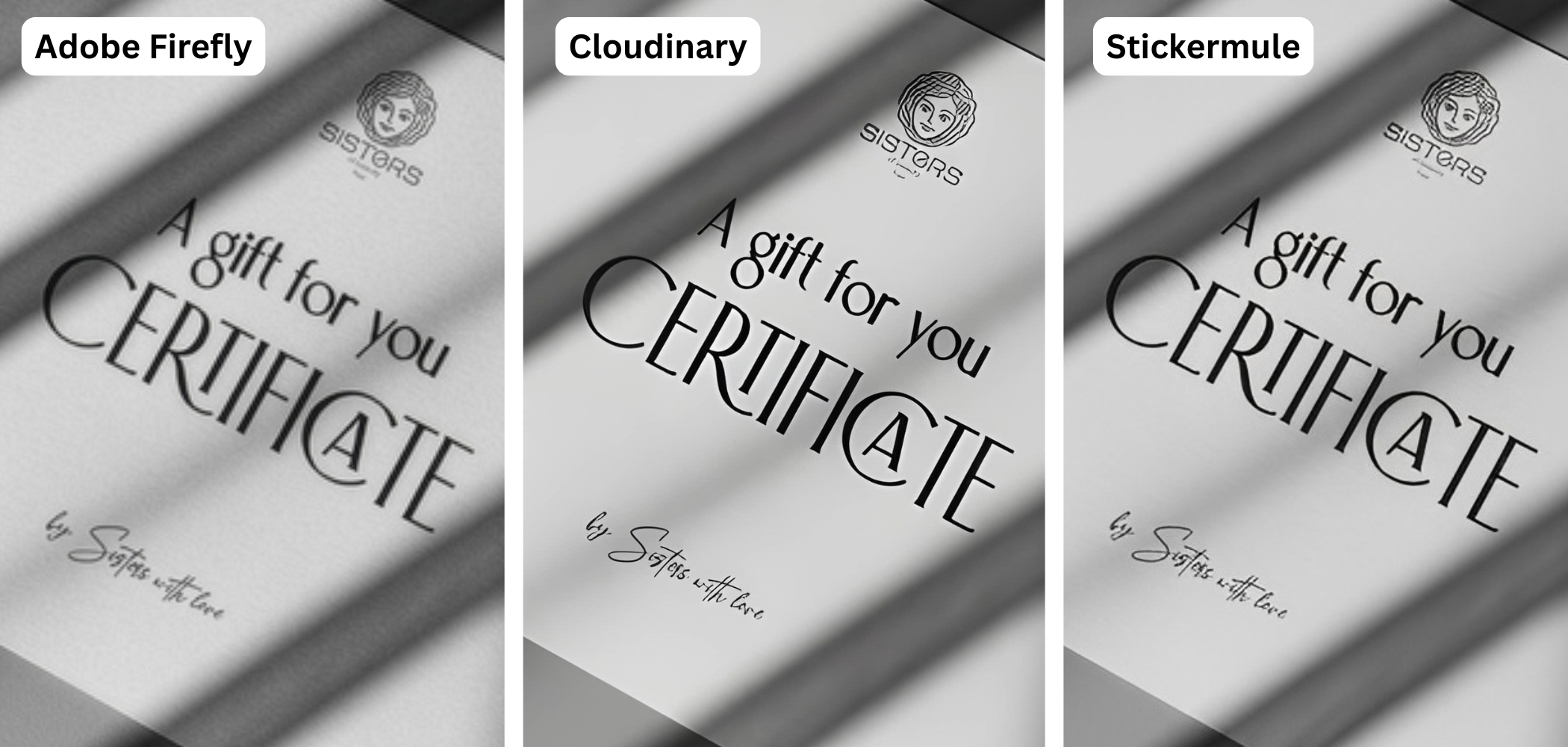
- Images containing text. After increasing photo resolution, the lettering should become clearer and more legible. Check whether the letters become distorted or if unwanted outlines or other artifacts appear.
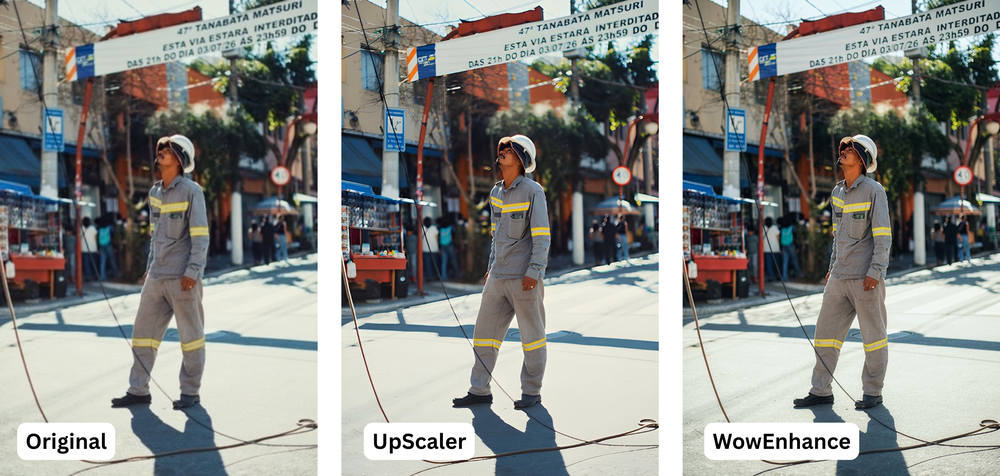
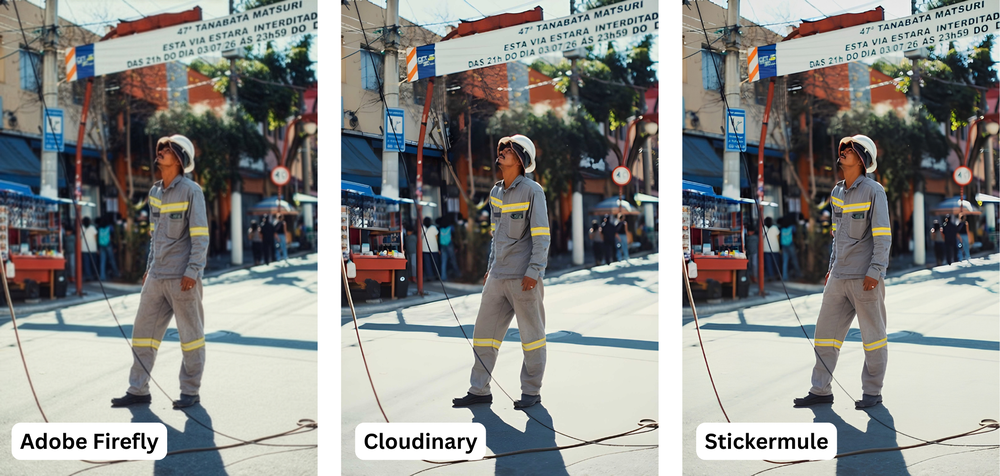
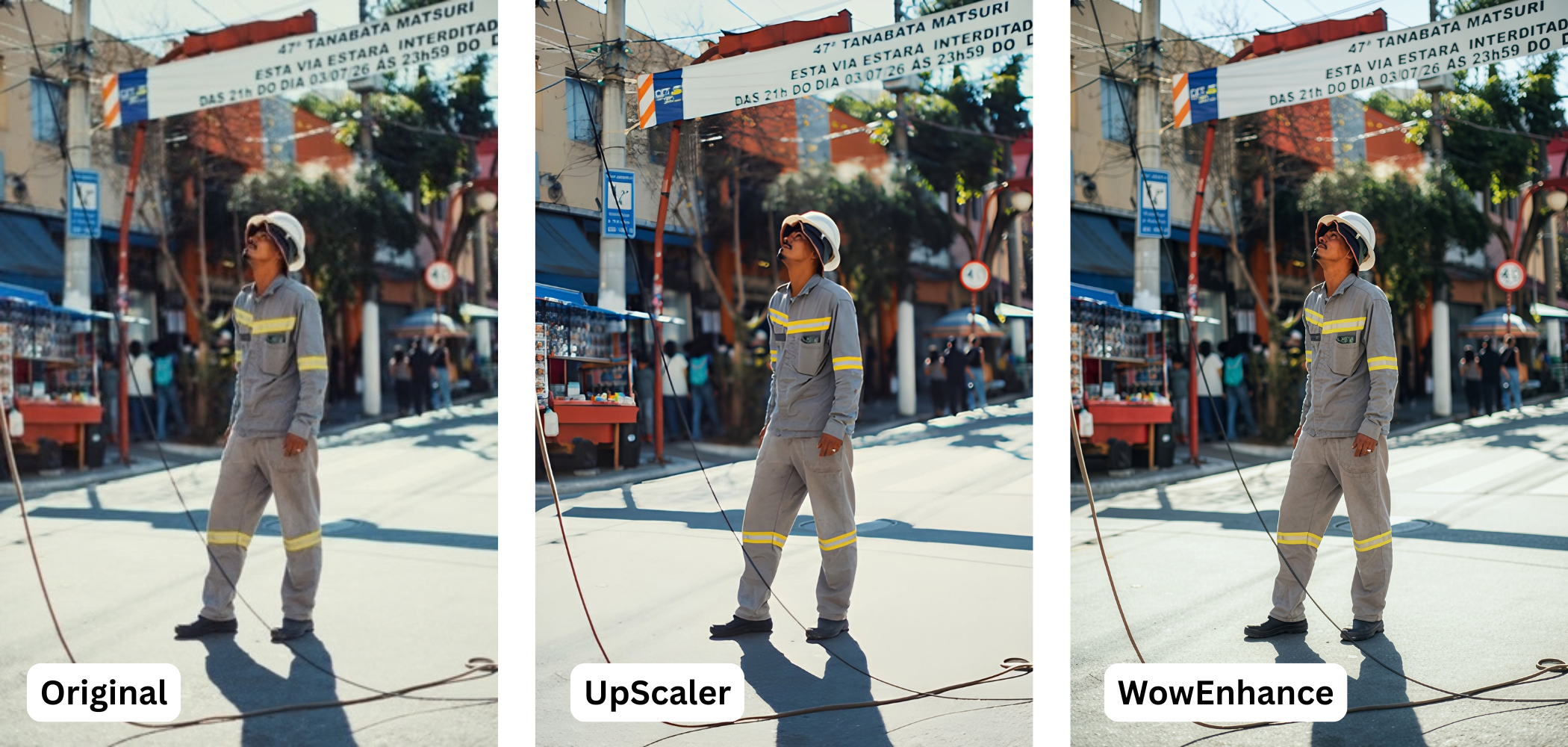
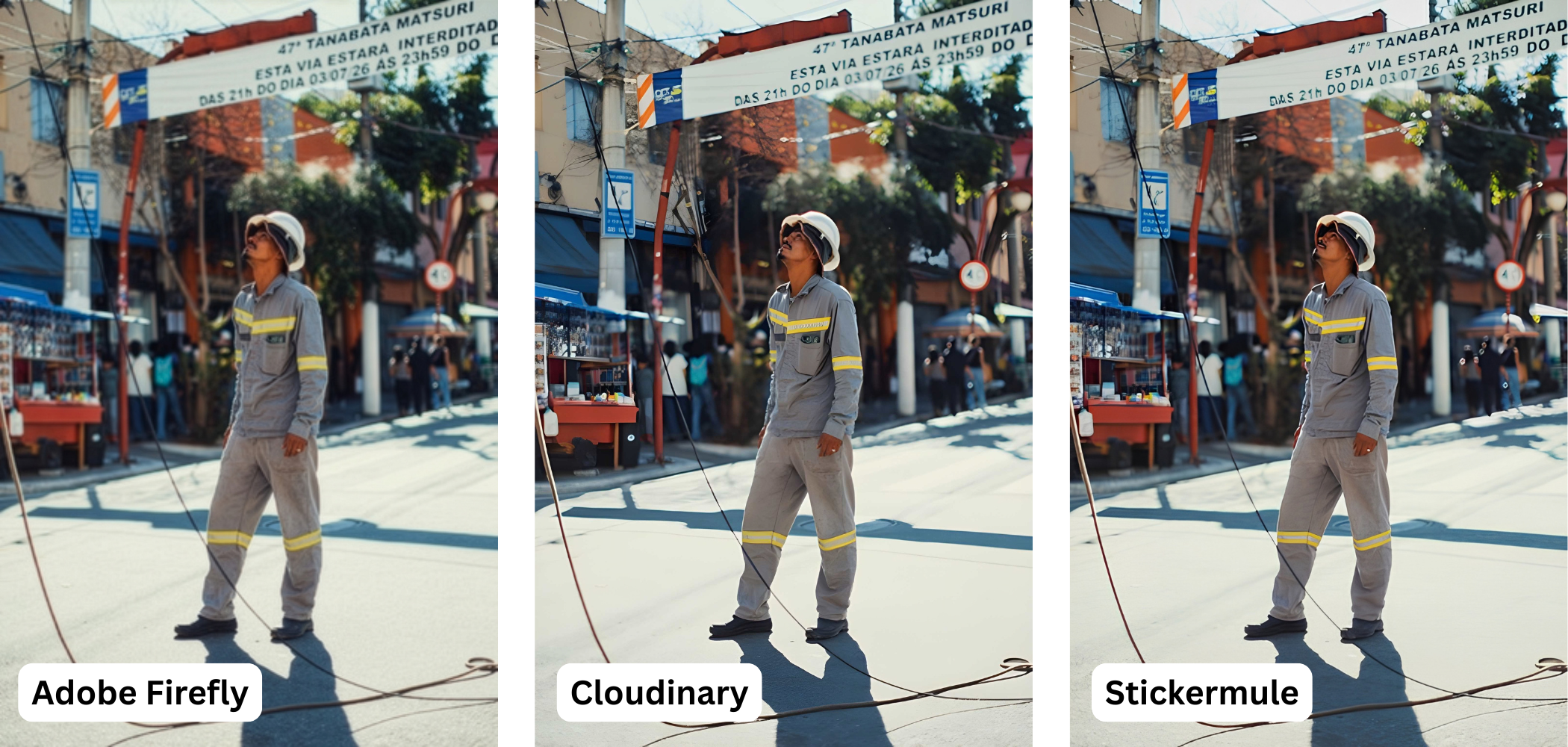
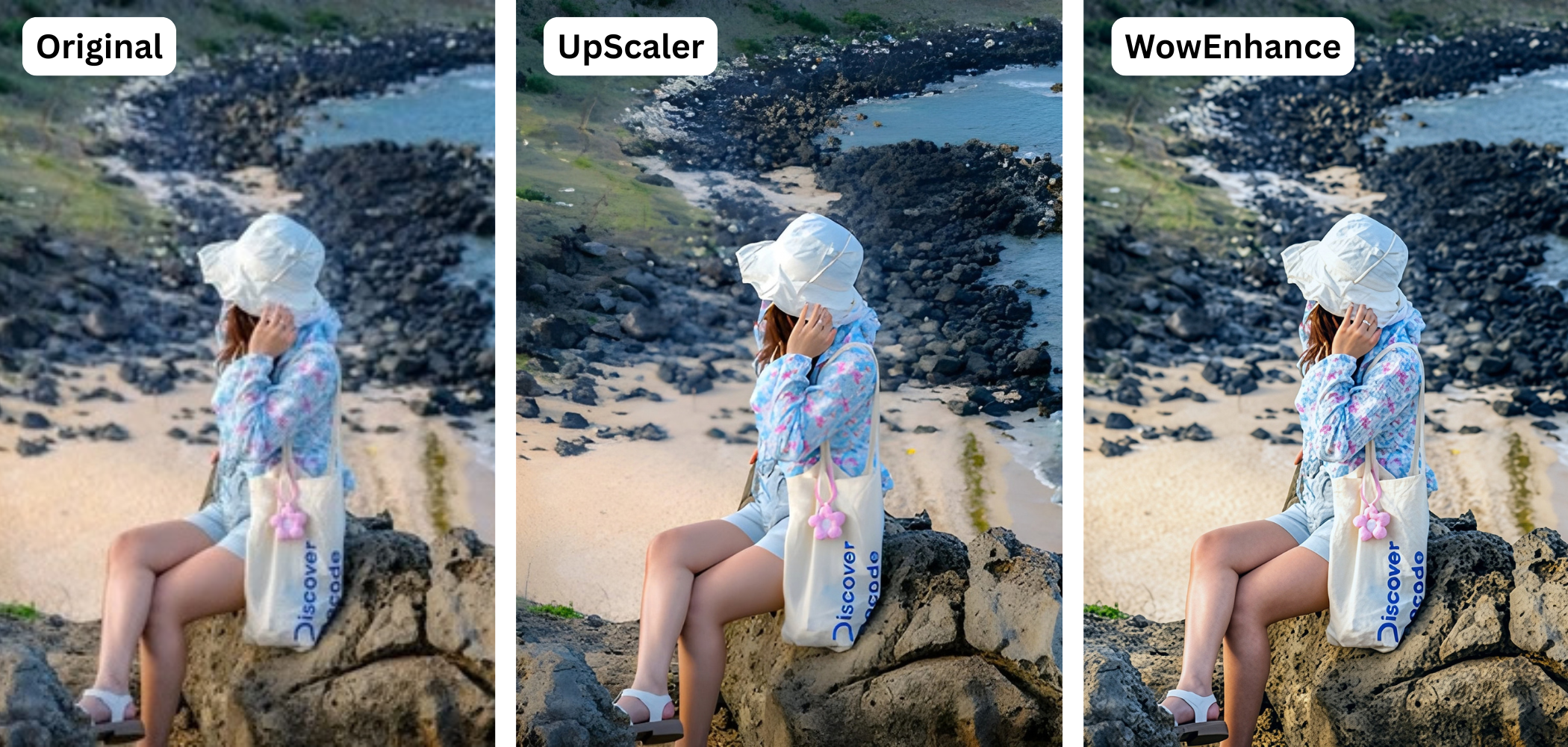
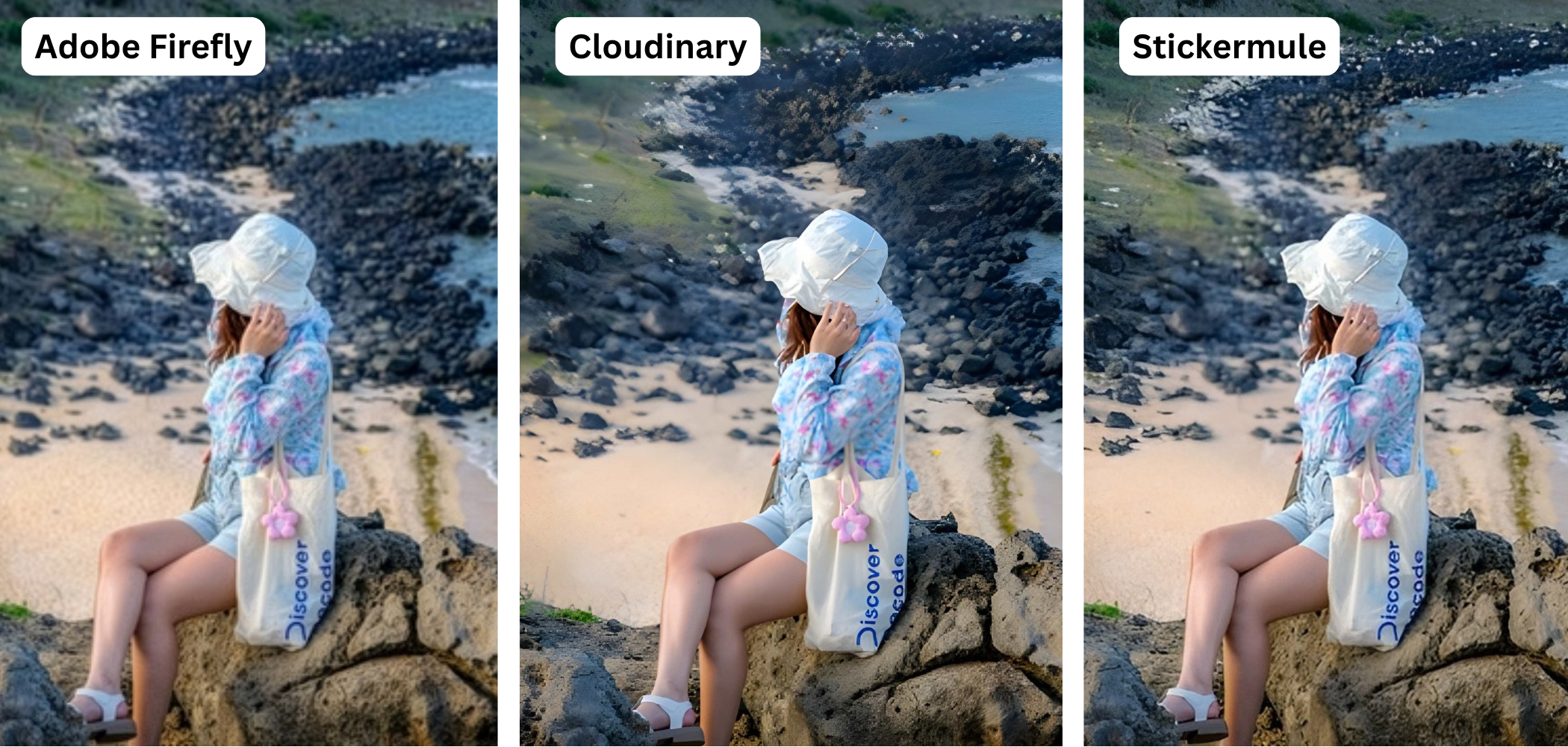
- Small reportage-style photos. This type of shots tends to contain a lot of different objects, people, and fine details. After upscaling, all image elements should look natural, free from noticeable distortions or artificially added new details.
- Nature photography. Here, rendering complex natural textures – such as stone, sand, leaves, grass, tree bark, and other surfaces – is particularly important. A good upscaler must preserve their natural appearance rather than turning fine details into overly sharp or smoothed-out textures.
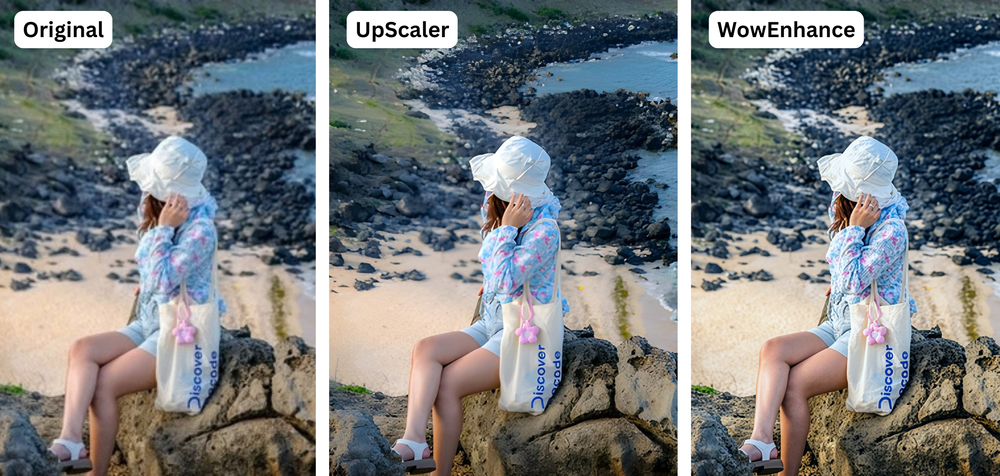
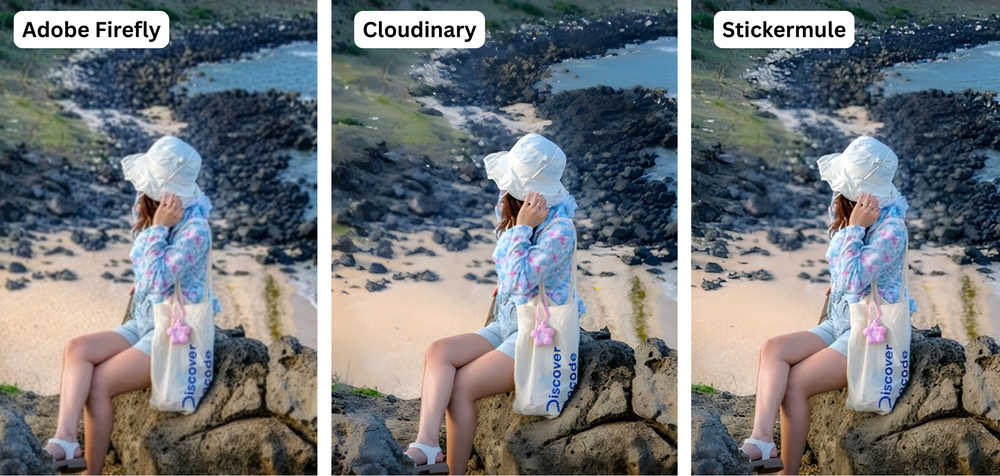
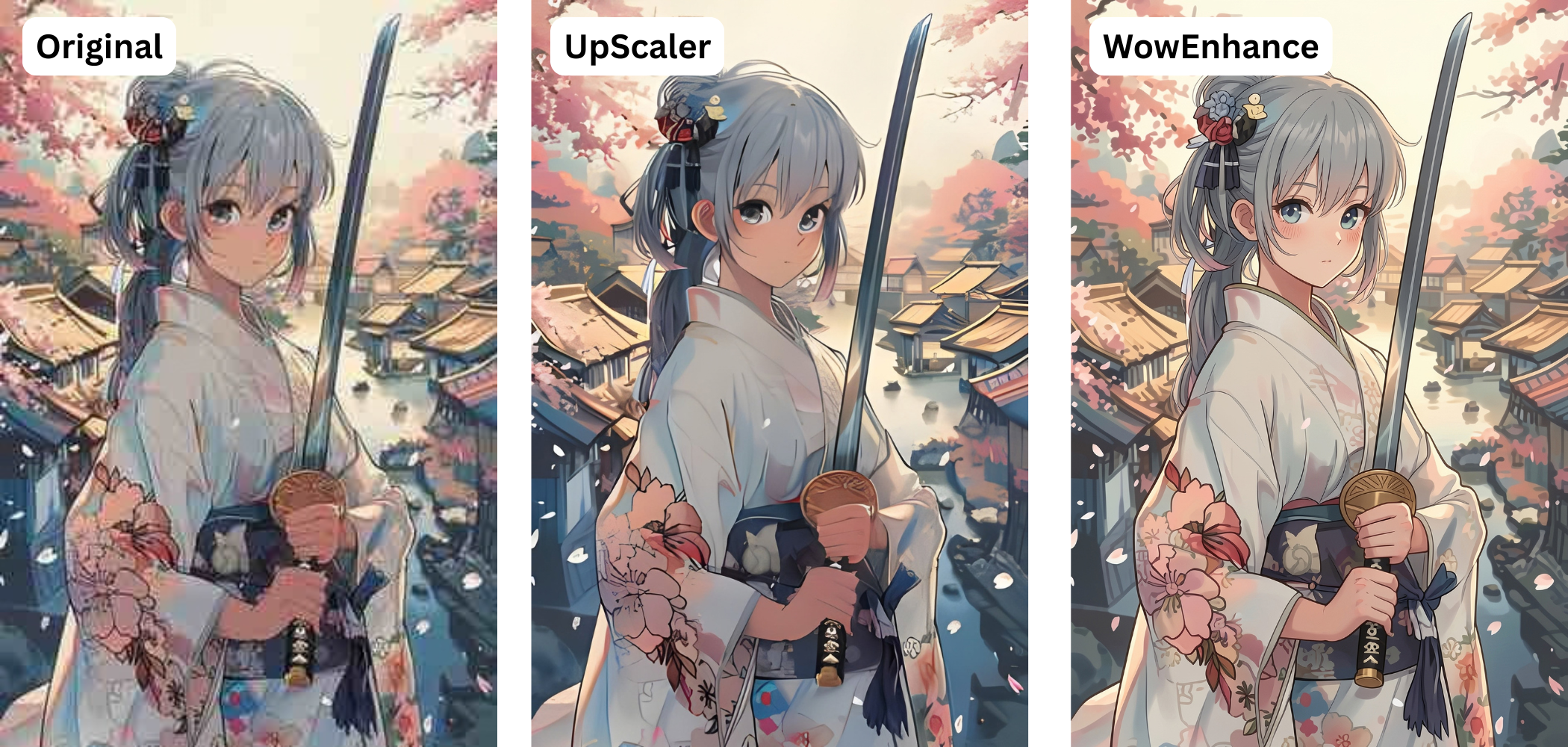
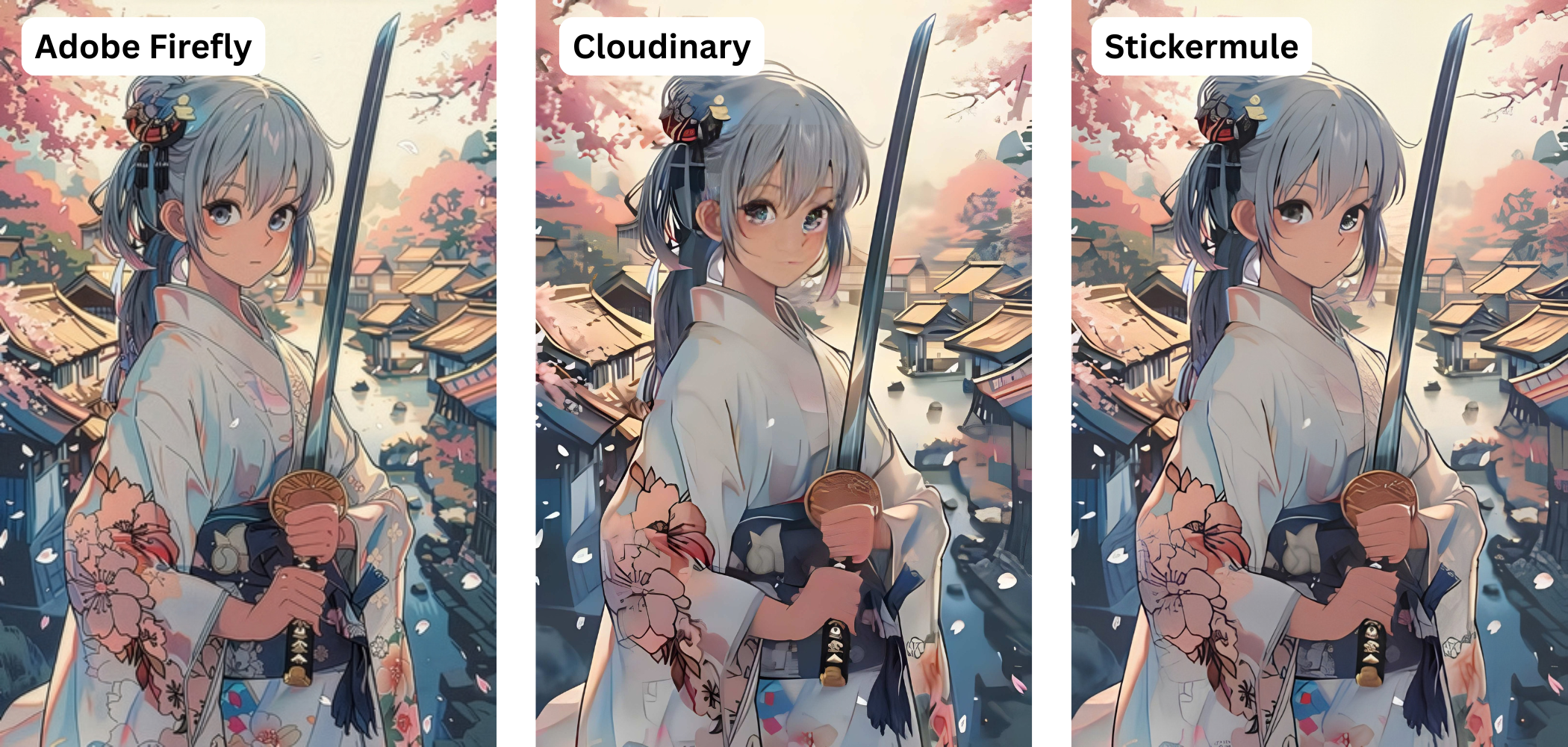
- Heavily compressed anime and AI images. When working with illustrations, it is important to assess how well fine details, sharp outlines, and the edges of objects are restored. It is also worth checking whether compression artifacts disappear without introducing new distortions.
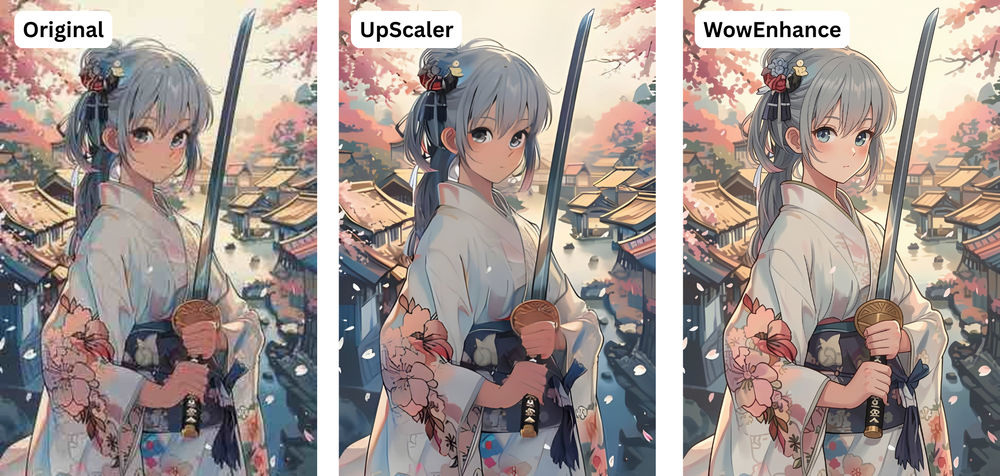
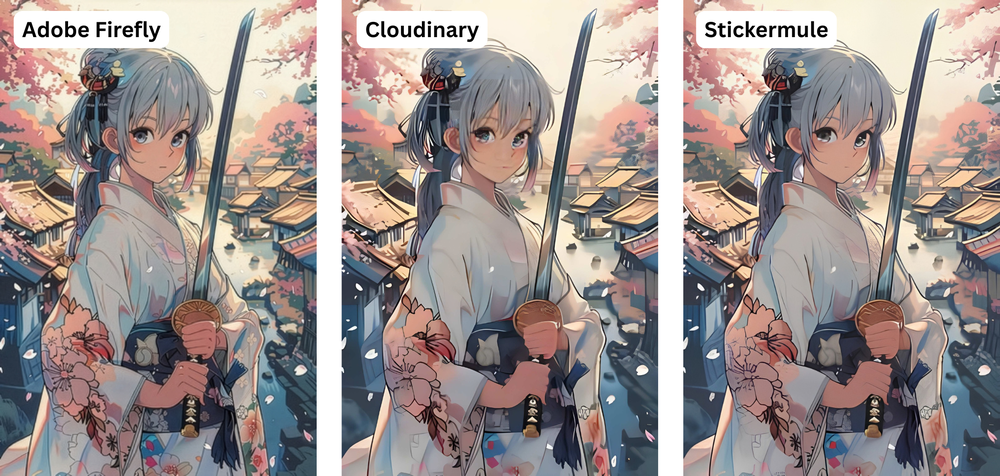
In Conclusion
AI upscaling makes it possible to enlarge a small image and make it more detailed. However, the result depends largely on the quality of the original image and the algorithm used. The smaller and more heavily compressed the original image is, the more information AI has to reconstruct. Consequently, there’s a higher chance that new, artificially created details might appear.
Therefore, when choosing a tool for increasing photo resolution, it is more important to focus on the quality of the result itself rather than the maximum upscaling factor or the advertised resolution. A good app should enlarge the image without introducing noticeable distortions, while also making sure it looks natural.